
“The system froze for everyone for two minutes, then it was fine.” “The report just spins and never finishes.” When users describe a problem like this, the cause is very often blocking: one session is holding locks, and every other session that needs the same rows is waiting in line behind it.
The good news is that blocking is one of the easiest performance problems to diagnose. SQL Server tells you exactly who is waiting and who they’re waiting for. This guide shows the queries to find the blocking session in under a minute, what to do about it right now, and how to stop it from coming back.
What blocking is (and why some of it is normal)
When a session changes data, SQL Server locks the rows it changes until the transaction ends. Another session that wants to read or change those same rows has to wait until the lock is released. That’s not a bug: it’s how SQL Server keeps you from reading half-finished changes (see SQL Transactions and ACID Explained Simply for the basics).
Short blocking happens all day on every busy server and nobody notices. It becomes a problem when a lock is held for a long time, because then the waiting sessions pile up: users see frozen screens, and applications start reporting timeouts.
Blocking is not the same as a deadlock:
| Blocking | Deadlock | |
|---|---|---|
| What happens | Session B waits for session A | A waits for B and B waits for A |
| Does it end by itself? | Yes, when A commits or rolls back | No, so SQL Server ends it |
| What users see | Slow or frozen screens, timeouts | Error 1205: “chosen as the deadlock victim” |
See it happen: a simple demo
You can reproduce blocking on a test database with two SSMS query windows. (The example is simplified and made up, but it’s exactly the pattern you’ll meet in real systems.)
Window 1 starts a transaction, changes a row, and doesn’t commit:
BEGIN TRANSACTION;

UPDATE Orders
SET Status = 'Shipped'
WHERE OrderID = 1001;

-- no COMMIT yet
Window 2 tries to read the same row:
SELECT OrderID, Status
FROM Orders
WHERE OrderID = 1001;
Window 2 keeps spinning. It isn’t slow: it’s waiting for window 1 to finish. Leave both windows as they are and open a third window to investigate.
Step 1: Find the blocked sessions
Every request that’s currently running is in sys.dm_exec_requests. A blocked request has a non-zero blocking_session_id:
SELECT r.session_id,
       r.blocking_session_id,
       r.wait_type,
       r.wait_time / 1000 AS wait_seconds,
       r.wait_resource,
       t.text AS sql_text
FROM sys.dm_exec_requests AS r
CROSS APPLY sys.dm_exec_sql_text(r.sql_handle) AS t
WHERE r.blocking_session_id <> 0;| session_id | blocking_session_id | wait_type | wait_seconds | sql_text |
|---|---|---|---|---|
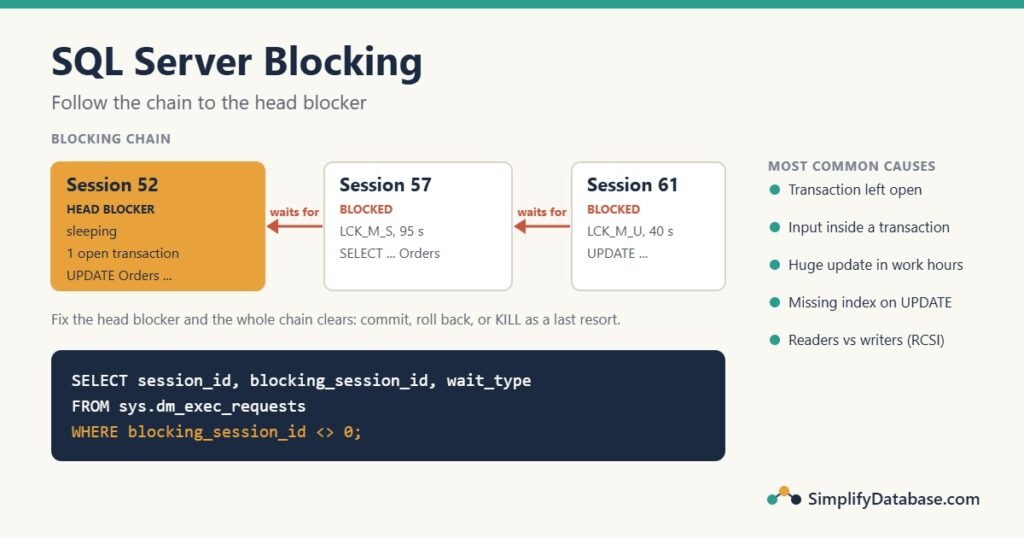
| 57 | 52 | LCK_M_S | 95 | SELECT OrderID, Status FROM Orders … |
Read it as: session 57 has been waiting 95 seconds for session 52. The wait type tells you what kind of lock it wants. LCK_M_S is a shared (read) lock; LCK_M_X and LCK_M_U mean it wants to change data. Any wait type that starts with LCK_M_ means blocking.
Step 2: Find the head blocker
On a real server you’ll often see a chain: 61 waits for 57, 57 waits for 52. Killing or fixing 61 or 57 achieves nothing. You need the head blocker: the session that blocks others but isn’t blocked itself.
Here’s the important trap: the head blocker is often not running anything. In the demo, session 52 finished its UPDATE long ago and is now idle (“sleeping”) with an open transaction. Idle sessions don’t appear in sys.dm_exec_requests at all, which is why people look at the running queries and can’t find the culprit. Use sys.dm_exec_sessions instead:
SELECT s.session_id,
       s.status,
       s.login_name,
       s.host_name,
       s.program_name,
       s.open_transaction_count,
       s.last_request_end_time,
       t.text AS last_sql
FROM sys.dm_exec_sessions AS s
JOIN sys.dm_exec_connections AS c ON c.session_id = s.session_id
CROSS APPLY sys.dm_exec_sql_text(c.most_recent_sql_handle) AS t
WHERE s.session_id IN (SELECT blocking_session_id
                       FROM sys.dm_exec_requests
                       WHERE blocking_session_id <> 0)
  AND s.session_id NOT IN (SELECT session_id
                           FROM sys.dm_exec_requests
WHERE blocking_session_id <> 0);| session_id | status | host_name | program_name | open_transaction_count | last_sql |
|---|---|---|---|---|---|
| 52 | sleeping | PC-ACCOUNTS-03 | MyApp.exe | 1 | UPDATE Orders SET Status = ‘Shipped’ … |
That’s the whole story in one row: session 52, from the PC PC-ACCOUNTS-03, running MyApp.exe, is sleeping with 1 open transaction. It ran an UPDATE, never committed, and has been holding the lock since last_request_end_time. “Sleeping with an open transaction” is the most common pattern you’ll find.
The quick way: EXEC sp_who2; shows every session with a BlkBy column. Look for the session number that appears in BlkBy but has nothing in its own BlkBy. It’s fine for a quick look, but the queries above tell you much more.
Step 3 (optional): See what’s locked
To see which locks a session holds or is waiting for, query sys.dm_tran_locks:
SELECT request_session_id,
       resource_type,
       request_mode,
       request_status,
       resource_description
FROM sys.dm_tran_locks
WHERE request_session_id IN (52, 57)
  AND resource_type <> 'DATABASE';
You’ll see session 52 with an X (exclusive) lock on a KEY or RID with status GRANT, and session 57 asking for an S (shared) lock on the same resource with status WAIT. A request_mode of X on resource type OBJECT means the whole table is locked, which is much worse (see lock escalation below).
Fix it now: commit, roll back, or KILL
You’ve found the head blocker. In order of preference:
- Ask the person or fix the application. If it’s someone’s SSMS window with a forgotten
BEGIN TRANSACTION, they can commit or roll back. If it’s an application, thehost_nameandprogram_nametell you which PC and program to look at. - KILL the session as a last resort:
KILL 52;KILL doesn’t throw the work away instantly: SQL Server has to roll back everything the transaction did, and that can take as long as the work took to do. A transaction that updated rows for 20 minutes can take 20 minutes to roll back, and it keeps blocking until it finishes. Check progress with KILL 52 WITH STATUSONLY;.
Never kill a session before you know what it is. Killing a big nightly import or a payroll run halfway through can cause more trouble than the blocking did.
Why blocking keeps happening (and how to prevent it)
1. Transactions left open
The number one cause. The application starts a transaction, an error happens, and the error path never rolls back. The connection goes back to the pool still holding locks. In T-SQL, protect every transaction:
SET XACT_ABORT ON;   -- any run-time error rolls back the whole transaction

BEGIN TRY
    BEGIN TRANSACTION;

    UPDATE Orders SET Status = 'Shipped' WHERE OrderID = 1001;
    INSERT INTO OrderHistory (OrderID, Status) VALUES (1001, 'Shipped');

    COMMIT TRANSACTION;
END TRY
BEGIN CATCH
    IF @@TRANCOUNT > 0
        ROLLBACK TRANSACTION;
    THROW;   -- pass the error on to the caller
END CATCH;
In application code, the rule is the same: every StartTransaction / BeginTransaction needs a Rollback in the error handler. In Delphi with FireDAC, that means Commit at the end of the try block and Rollback in the except block.
2. User interaction inside a transaction
A screen that starts a transaction, then shows “Are you sure?” and waits for the user, holds its locks for as long as the user takes to answer, including their coffee break. Collect all input first, then open the transaction, do the work and commit straight away.
3. Long updates during business hours
One UPDATE that changes 2 million rows holds its locks until it finishes. Do big changes in batches, so each transaction is short:
WHILE 1 = 1
BEGIN
    UPDATE TOP (5000) Orders
    SET Archived = 1
    WHERE OrderDate < '2024-01-01'
      AND Archived = 0;

    IF @@ROWCOUNT = 0 BREAK;
END;
Each batch commits on its own (autocommit), so other sessions can get in between batches.
4. Missing indexes and lock escalation
An UPDATE ... WHERE CustomerID = 42 with no index on CustomerID has to scan the whole table, and it takes locks as it reads, so it blocks far more rows than it changes. When one statement holds more than about 5,000 locks on one table, SQL Server may escalate them to a single table lock, and then everybody waits. The right index makes the statement touch only the rows it needs. See Missing Indexes in SQL Server.
5. Readers and writers blocking each other
Under the default isolation level (READ COMMITTED), a report that reads a table waits for writers, and writers can wait for readers. Many systems fix this with Read Committed Snapshot Isolation (RCSI):
ALTER DATABASE SalesDB
SET READ_COMMITTED_SNAPSHOT ON
WITH ROLLBACK IMMEDIATE;
With RCSI, readers see the last committed version of each row instead of waiting. Writers still block other writers, but reports and screens no longer freeze behind updates. It’s on by default in Azure SQL Database. The costs: row versions are kept in tempdb, and code that relied on readers waiting can behave differently, so test it first. WITH ROLLBACK IMMEDIATE disconnects other users, so run it in a maintenance window.
What about WITH (NOLOCK)? It removes the waiting by reading uncommitted data. That means reports can show changes that are later rolled back, and can even skip rows or count them twice while data moves. It hides the problem instead of fixing it. Don’t use it in anything financial.
Catch blocking automatically
Blocking often happens at 3 a.m. or for two minutes when nobody is looking. SQL Server can record it for you with the blocked process report:
EXEC sp_configure 'show advanced options', 1;
RECONFIGURE;
EXEC sp_configure 'blocked process threshold (s)', 10;
RECONFIGURE;
From then on, SQL Server raises an event for any request blocked for more than 10 seconds. Capture it with an Extended Events session on the blocked_process_report event, and you’ll have the blocked and blocking statements even for problems that ended hours ago. For a live view, SSMS’s built-in Activity Monitor (right-click the server in Object Explorer) shows the same information in a friendlier way, including a “Head Blocker” column.
Blocking checklist
- Look for
blocking_session_id <> 0insys.dm_exec_requests. - Follow the chain to the head blocker with
sys.dm_exec_sessions. Expect it to be “sleeping with an open transaction”. - Use
host_name,program_nameandlast_sqlto find out who and what it is. - Commit or roll back if you can;
KILLonly when you know what you’re killing, and expect a rollback. - Prevent it:
XACT_ABORT+TRY/CATCH, no user input inside transactions, batch big updates, index theWHEREof your updates, and consider RCSI. - Turn on the blocked process report so the next incident is recorded.
What if nothing is blocked?
If sys.dm_exec_requests shows no blocking and the server isn’t busy, the problem is the query itself. The next step is the execution plan: see How to Read a SQL Server Execution Plan. If the query is fast in SSMS but slow from the application, read SQL Server Parameter Sniffing.
Part of a series: this article is one step in my SQL Server Performance Troubleshooting: A Practical Step-by-Step Guide, which walks through the whole process of finding and fixing a slow query.
Related articles
- SQL Transactions and ACID Explained Simply: what a transaction is, and why it holds locks.
- Missing Indexes in SQL Server: the right index makes updates lock fewer rows.
- How to Fix Query Timeout and Performance Issues in Delphi Applications: when blocking shows up as timeouts in a desktop app.
- SQL Stored Procedures Explained Simply: a good place to put the TRY/CATCH transaction pattern.