
Struggling with Query Timeout errors or sluggish performance in your Delphi and SQL Server application? Discover 5 practical, battle-tested fixes to optimize your database and client-side code today.
Introduction: The Dreaded “Timeout” Error
If you maintain or develop enterprise applications using Delphi and SQL Server, you’ve likely encountered it: the application freezes, the UI becomes unresponsive, and eventually, the user is greeted with a frustrating “Query Timeout” or “Connection Lost” error.
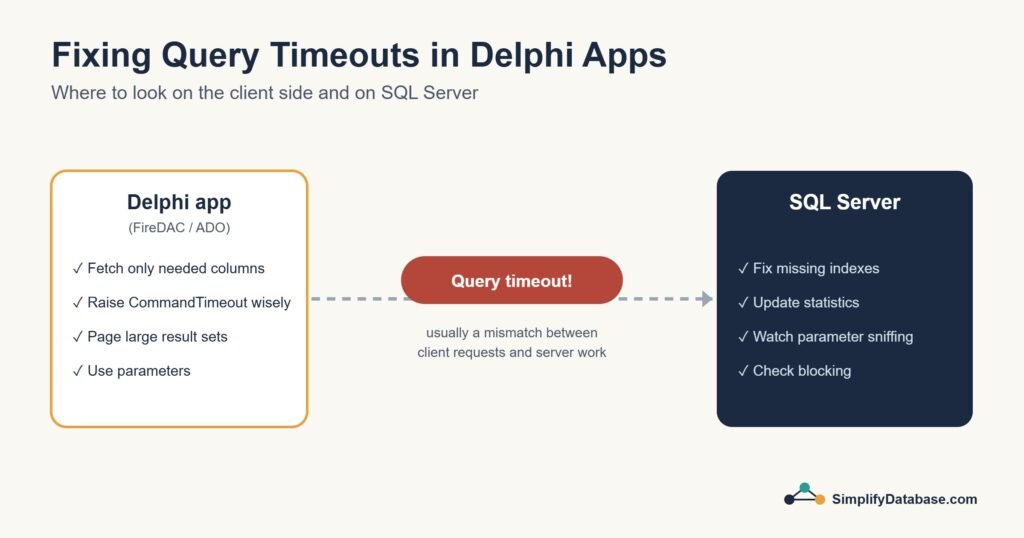
While it’s tempting to blame the network or the database server, the truth is that performance bottlenecks in Delphi-SQL Server architectures usually stem from a mismatch between how the client requests data and how the server processes it.
The good news? Most of these issues can be resolved without a complete system rewrite. In this guide, we will walk through 5 practical, battle-tested solutions to diagnose and fix these performance issues from both the SQL Server and Delphi sides.
Step 1: Diagnose Before You Guess
Before changing any code, you need to know exactly what is slowing down.
- On the SQL Server side: Use SQL Server Profiler or Extended Events to capture the exact queries being sent by your Delphi application. Look for queries with high
DurationorReads. - On the Delphi side: Enable logging in your data access components (like FireDAC’s
Traceor ADO’s event handlers) to see how long the client waits for a response.
Once you have found the slow query, run it in SSMS with the actual execution plan turned on to see where the time goes. If execution plans are new to you, start with How to Read a SQL Server Execution Plan. For a complete step-by-step checklist, see SQL Server Performance Troubleshooting: A Practical Step-by-Step Guide.
Step 2: SQL Server Side Fixes (The Backend)
1. Tackle Parameter Sniffing
This is the #1 silent killer of Delphi application performance. SQL Server compiles an execution plan based on the first parameter values passed to a Stored Procedure. If those values are not representative of typical data, subsequent calls from your Delphi app will use a highly inefficient plan.
- The Fix: Use local variables inside your Stored Procedure to mask the parameters, or add
OPTION (RECOMPILE)to the query if the data distribution is highly skewed.
A typical sign of parameter sniffing is a query that is fast when you run it in SSMS but slow when the Delphi app runs it. Step 8 of the performance troubleshooting guide explains why that happens and how to check it.
2. Hunt Down Missing Indexes and Outdated Statistics
Delphi applications often generate dynamic WHERE clauses. If the underlying tables lack proper indexes, SQL Server will resort to costly Table Scans.
- The Fix: Run the built-in Dynamic Management Views (DMVs) like
sys.dm_db_missing_index_detailsto find missing indexes. Also, ensure thatUPDATE STATISTICSis running regularly (e.g., via a weekly SQL Agent Job).
Be careful with the missing index suggestions: they are a starting point, not a to-do list. Missing Indexes in SQL Server shows how to judge them. If an index exists but SQL Server still scans, read Index Seek vs Index Scan: Why SQL Server Ignores Your Index.
Step 3: Delphi Side Fixes (The Client)
3. Stop Using SELECT *
It’s a common habit in rapid Delphi development to drop a TFDQuery or TADOQuery and set the SQL to SELECT * FROM Employees. This forces SQL Server to send every column over the network, consuming massive bandwidth and memory, especially for tables with VARCHAR(MAX) or BLOB fields.
- The Fix: Always explicitly define the columns you need:
SELECT EmployeeID, FirstName, LastName FROM Employees.
4. Optimize FireDAC / ADO Fetch Options
If your Delphi UI freezes while loading a large dataset, the issue is likely how data is fetched.
- The Fix (FireDAC): Change
FetchOptions.ModefromfmOnDemand(default) tofmAllif the dataset is small, to load it in one go. For larger datasets, usefmExactwith a reasonableRowsetSize(e.g., 100) to prevent blocking the main UI thread. Also, review yourCommandTimeoutproperty; don’t just increase it to 0 (infinite) as a band-aid solution.
5. Push Logic to Stored Procedures
Avoid building massive, dynamic SQL strings concatenated in Delphi code. Not only is this a security risk (SQL Injection), but it also prevents SQL Server from caching execution plans efficiently.
- The Fix: Move complex business logic, joins, and aggregations into SQL Server Stored Procedures, and call them from Delphi using
TFDStoredProcorTADOStoredProc.
New to stored procedures? See SQL Stored Procedures Explained Simply. And if you do need dynamic SQL, always pass values as parameters. SQL Injection Explained Simply shows why.
💡 Pro Tip: The “Parameter Sniffing” Safe Stored Procedure Template
Here is a simple, robust template you can use in your SQL Server database to prevent parameter sniffing issues originating from Delphi calls:
 CREATE PROCEDURE dbo.GetCustomerOrders
    @CustomerID INT
AS
BEGIN
    SET NOCOUNT ON;

    -- Declare local variables to mask the input parameters
    DECLARE @LocalCustomerID INT = @CustomerID;

    -- Query using the local variable
    SELECT OrderID, OrderDate, TotalAmount
    FROM dbo.Orders
    WHERE CustomerID = @LocalCustomerID
    -- OPTION (RECOMPILE) -- Uncomment this only if data distribution is highly uneven
END
Simply call this from your Delphi TFDStoredProc instead of passing the parameter directly into a dynamic WHERE clause.
Related articles
- SQL Server Performance Troubleshooting: A Practical Step-by-Step Guide: the full checklist, from symptom to fix.
- How to Read a SQL Server Execution Plan: find out where a slow query spends its time.
- Eager Index Spool in SQL Server: a real slow-query case and how it was fixed.
- SQL Indexes Explained Simply: the basics of indexes.
- SQL Server Blocking: How to Find the Blocking Session: when the app freezes because another session holds locks.