
In a well-designed database, an invoice doesn’t store the customer’s name. It stores the CustomerID, a number that points to the Customers table. That’s what keeps the data clean: rename a customer once and every invoice shows the new name.
But users don’t want to type 17. They want to pick “Al Noor Trading” from a list. The bridge between the two is a lookup: show the name, save the ID.
Delphi has this built in, and it’s one of the reasons ERP screens are so quick to build. This is part 4 of the Delphi for ERP series. It continues from the customer screen in part 3.
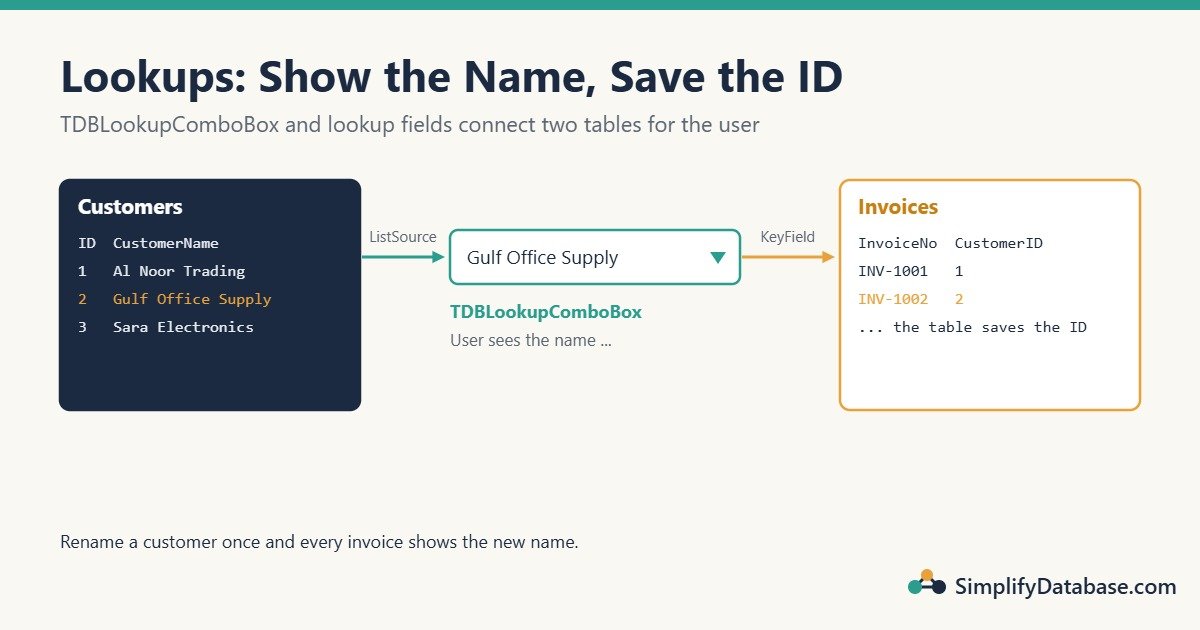
Table of Contents
The Tables
Add an Items table and an Invoices header table to the database from part 3. Part 5 will add the invoice lines.
CREATE TABLE dbo.Items (
    ItemID    INT IDENTITY(1,1) NOT NULL PRIMARY KEY,
    ItemCode  VARCHAR(20)   NOT NULL UNIQUE,
    ItemName  NVARCHAR(100) NOT NULL,
    UnitPrice DECIMAL(12,3) NOT NULL DEFAULT 0 CHECK (UnitPrice >= 0),
    IsActive  BIT           NOT NULL DEFAULT 1
);

CREATE TABLE dbo.Invoices (
    InvoiceID   INT IDENTITY(1,1) NOT NULL PRIMARY KEY,
    InvoiceNo   VARCHAR(20)   NOT NULL UNIQUE,
    InvoiceDate DATE          NOT NULL DEFAULT CAST(GETDATE() AS DATE),
    CustomerID  INT           NOT NULL REFERENCES dbo.Customers (CustomerID),
    Notes       NVARCHAR(200) NULL,
    TotalAmount DECIMAL(14,3) NOT NULL DEFAULT 0
);

INSERT INTO dbo.Items (ItemCode, ItemName, UnitPrice)
VALUES ('P-100', N'A4 paper (box)', 6.500),
       ('P-200', N'Laser toner',    28.000),
       ('P-300', N'Office chair',   45.750);
The REFERENCES part is a foreign key: SQL Server won’t accept an invoice for a customer that doesn’t exist. (See Primary Keys vs Foreign Keys.)
Method 1: TDBLookupComboBox on a Form
This is the classic way to pick one value on an entry form.
On a new form frmInvoice, drop:
qryInvoices(TFDQuery):SELECT InvoiceID, InvoiceNo, InvoiceDate, CustomerID, Notes, TotalAmount FROM dbo.Invoices ORDER BY InvoiceID DESC, plusdsInvoices(TDataSource) pointing to it.qryCustomerList(TFDQuery): the list the user picks from, plusdsCustomerListpointing to it:
SELECT CustomerID, CustomerName, CustomerCode, City, IsActive
FROM dbo.Customers
ORDER BY CustomerName
Now drop a TDBLookupComboBox and set five properties:
| Property | Value | Meaning |
|---|---|---|
DataSource | dsInvoices | The record being edited |
DataField | CustomerID | The field that gets saved |
ListSource | dsCustomerList | Where the choices come from |
KeyField | CustomerID | The value to save from the chosen row |
ListField | CustomerName;CustomerCode | What the user sees (two columns) |
Open both queries in FormCreate (open the list first):
procedure TfrmInvoice.FormCreate(Sender: TObject);
begin
  qryCustomerList.Open;
  qryInvoices.Open;
end;
Run it. The combo shows “Al Noor Trading C-001”, and when the user picks it, Invoices.CustomerID gets the right number. The user can also type the first letters of the name to jump to it.
Method 2: A Lookup Field (Best for Grids)
A combo box works for one value on a form. For lines in a grid (like items on an invoice) you want a dropdown inside the grid column. For that, create a lookup field on the dataset:
- Double-click
qryInvoices→ Fields Editor → right-click → Add all fields. - Right-click → New field. Name:
CustomerName, Type:String, Size:100, Field type: Lookup. - Set: Key Fields =
CustomerID, Dataset =qryCustomerList, Lookup Keys =CustomerID, Result Field =CustomerName.
Now CustomerName behaves like a real column of qryInvoices, but it’s calculated from the list. In a TDBGrid it appears as a column with a dropdown button. When the user picks a name, Delphi writes the matching CustomerID into the invoice row.
You’ll use exactly this in part 5 for the item column on invoice lines.
| TDBLookupComboBox | Lookup field | |
|---|---|---|
| Best for | One choice on a form | A column in a grid |
| Setup | Properties on the control | A new field in the Fields Editor |
| Shows | One or more list columns | One result column |
| Also usable in | – | Reports, exports, TDBText labels |
Method 3: A JOIN, for Read-Only Lists
For a list of invoices that users only view (not edit), the simplest and fastest way is plain SQL:
SELECT i.InvoiceID, i.InvoiceNo, i.InvoiceDate, c.CustomerName, i.TotalAmount
FROM dbo.Invoices AS i
JOIN dbo.Customers AS c ON c.CustomerID = i.CustomerID
ORDER BY i.InvoiceDate DESC;
SQL Server does the lookup, and the grid simply shows the result. If you ever make a joined query editable, tell FireDAC which table to update with UpdateOptions.UpdateTableName := 'dbo.Invoices', and remove pfInUpdate from the ProviderFlags of the joined CustomerName field so FireDAC doesn’t try to save it. (A refresher on joins: SQL JOINs Explained Simply.)
When the List Is Too Long: a Search Dialog
A dropdown with 50 customers is great. With 50,000 it’s slow to load and useless to scroll. For big lists, use a search dialog instead: a small form with a search box and a grid that returns the chosen ID.
// In the search form unit
class function TfrmCustomerSearch.Execute(out ACustomerID: Integer): Boolean;
var
  F: TfrmCustomerSearch;
begin
  F := TfrmCustomerSearch.Create(nil);
  try
    Result := F.ShowModal = mrOk;
    if Result then
      ACustomerID := F.qrySearch.FieldByName('CustomerID').AsInteger;
  finally
    F.Free;
  end;
end;
// On the invoice form: a "..." button next to the customer field
procedure TfrmInvoice.btnFindCustomerClick(Sender: TObject);
var
ID: Integer;
begin
if TfrmCustomerSearch.Execute(ID) then
begin
if not (qryInvoices.State in [dsEdit, dsInsert]) then
qryInvoices.Edit;
qryInvoices.FieldByName('CustomerID').AsInteger := ID;
end;
end;Inside the search form, qrySearch runs a parameterised WHERE CustomerName LIKE :Pattern query as the user types, and the OK button (or Enter, or a double-click on the grid) sets ModalResult := mrOk. Many ERPs open this dialog with F4 or F9 in any ID field, which data entry users love.
Keeping the List Fresh
The list query is loaded once when the form opens. If someone adds a customer while the invoice form is open, it won’t be in the list. Refresh it when needed:
qryCustomerList.Refresh;A good moment is right after the user returns from the customer screen, or when the invoice form gets focus again.
Common Mistakes
- Opening the data query before the list query. The combo has nothing to look up yet and shows blanks. Open the list first.
- Filtering inactive rows out of the list. Old invoices for an inactive customer then show an empty name. Keep them in the list, and block choosing them for new invoices (exercise 3).
- Storing the name instead of the ID. Renaming a customer then breaks history. Store the ID; show the name.
- A dropdown for huge tables. Use a search dialog over a few thousand rows.
- Forgetting the foreign key. Without it, a bug or script can save a
CustomerIDthat doesn’t exist.
Practice Exercises
- Show the selected customer’s city next to the combo box, read-only.
- Add an
ItemIDlookup combo that showsItemCodeandItemName(you’ll need it in part 5). - Stop users from saving an invoice for an inactive customer.
Answers
1. Create a second lookup field CustomerCity (Result Field = City, same keys as CustomerName), then drop a TDBText with DataSource = dsInvoices and DataField = CustomerCity. It updates as soon as the user picks a customer.
2. Add qryItemList (SELECT ItemID, ItemCode, ItemName, UnitPrice FROM dbo.Items ORDER BY ItemCode) and dsItemList, then set the combo’s ListSource = dsItemList, KeyField = ItemID, ListField = ItemCode;ItemName.
3. Use the list dataset’s Lookup method in BeforePost:
procedure TfrmInvoice.qryInvoicesBeforePost(DataSet: TDataSet);
var
  Active: Variant;
begin
  Active := qryCustomerList.Lookup('CustomerID',
    DataSet.FieldByName('CustomerID').AsInteger, 'IsActive');
  if VarIsNull(Active) then
    raise Exception.Create('Please choose a customer.');
  if Active = False then
    raise Exception.Create('This customer is inactive. Choose another customer.');
end;
Lookup searches the rows already loaded in qryCustomerList and returns Null if nothing matches. Add System.Variants to the uses clause for VarIsNull.
Summary
- Store IDs in your tables; show names to users.
TDBLookupComboBoxpicks one value on a form: set DataSource/DataField and ListSource/KeyField/ListField.- A lookup field gives a dropdown column inside a
TDBGrid, ideal for invoice lines. - For read-only lists, let SQL Server do the lookup with a JOIN.
- For very large lists, use a search dialog instead of a dropdown.
Next in the series: master-detail forms, an invoice header with its invoice lines on one screen.
Delphi for ERP series
All parts in order. New parts appear here as they go live.
New to Delphi? Start with What Is Delphi? Build Your First App.
Related articles
- Build a Customer Screen in Delphi in 30 Minutes: part 3 of this series.
- Primary Keys vs Foreign Keys Explained for Beginners: why we store IDs.
- Database Normalization Explained Simply: why the name lives in only one table.
- Parameterised Queries in Delphi: for the search dialog’s query.