
Most real Delphi apps talk to a database, and in many companies that database is SQL Server. In Delphi the standard way to connect is FireDAC, the data access library that ships with Delphi.
In this guide you’ll connect a Delphi VCL app to SQL Server, first with the visual designer and then in code. You’ll also see how to keep the password out of your source code, how to test the connection, and how to fix the errors almost everyone hits the first time.
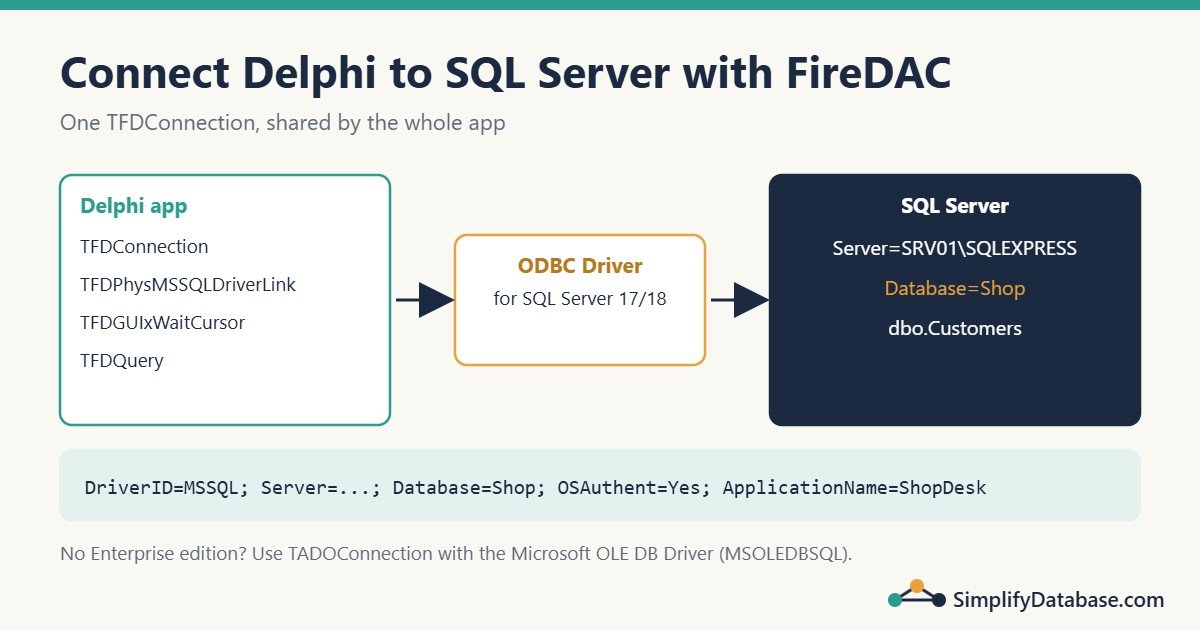
Table of Contents
What You Need
- Delphi with FireDAC client/server support. Connecting FireDAC to a remote server such as SQL Server is an Enterprise or Architect feature. On Community or Professional edition, see the ADO section below.
- SQL Server (any edition, including the free Express or Developer edition) and a database. The examples use a database called
Shopwith aCustomerstable. - The Microsoft ODBC Driver for SQL Server on the PC that runs your app. FireDAC’s SQL Server driver works through it. Version 17 or 18 is fine.
Here’s a small table to test with:
CREATE DATABASE Shop;
GO
USE Shop;
GO
CREATE TABLE dbo.Customers (
    CustomerID   INT IDENTITY(1,1) PRIMARY KEY,
    CustomerName NVARCHAR(100) NOT NULL,
    City         NVARCHAR(50)  NULL,
    CreatedAt    DATETIME2     NOT NULL DEFAULT SYSDATETIME()
);
INSERT INTO dbo.Customers (CustomerName, City)
VALUES (N'Sara Ali', N'Manama'), (N'Omar Hassan', N'Riffa'), (N'Lina Saeed', N'Muharraq');
The FireDAC Components You’ll Use
| Component | Job |
|---|---|
TFDConnection | Holds the connection to the database: server, database, login. |
TFDPhysMSSQLDriverLink | Links the SQL Server driver into your app. |
TFDGUIxWaitCursor | Shows the hourglass cursor while a query runs. VCL apps need it. |
TFDQuery | Runs a SQL statement and holds the result rows. |
Think of it as a chain: connection → query → (later) data source → grid. This article covers the connection; the DBGrid article in this series covers showing the data.
Step 1: Add the Components
- Create a new Windows VCL Application.
- From the Tool Palette, drop these onto the form:
TFDConnection,TFDPhysMSSQLDriverLink,TFDGUIxWaitCursor,TFDQueryand aTButton. - Rename them:
FDConnection1→conShop,FDQuery1→qryCustomers,Button1→btnTest. - Select
qryCustomersand make sure itsConnectionproperty isconShop. (If there’s only one connection on the form, Delphi sets this for you.)
Step 2: Set the Connection with the Editor
Double-click conShop to open the FireDAC Connection Editor.
- Set Driver ID to
MSSQL. - Fill in the parameters:
| Parameter | Example | Meaning |
|---|---|---|
Server | localhost or .\SQLEXPRESS or SRV01,1433 | Server name, optional \instance or ,port |
Database | Shop | Database to open |
OSAuthent | Yes | Use Windows login (no user name or password) |
User_Name | shop_app | SQL Server login (when OSAuthent = No) |
Password | ******** | Password for that login |
ApplicationName | ShopDesk | Shows up in SQL Server monitoring tools, which helps when you investigate blocking |
Then click Test. If you see “Connection established successfully”, click OK.
Then set two properties on conShop in the Object Inspector:
LoginPrompt=False, so users don’t get a FireDAC login box.Connected=Falsebefore you save. Leave connecting to your code. A form saved withConnected = Truetries to connect while it loads, before your code has a chance to set the right server.
Windows Login or SQL Login?
| Windows authentication | SQL Server authentication | |
|---|---|---|
| Setting | OSAuthent=Yes | OSAuthent=No + User_Name + Password |
| Password stored in app | No | Yes, so protect it |
| Typical use | Office networks with a domain | Mixed environments, machines not in the domain |
Windows authentication is safer when it’s possible, because there’s no password to store.
Step 3: Connect in Code
The editor is good for design time. In a real app you set the connection in code, so you can read the server name from a settings file:
procedure TForm1.ConnectToShop;
begin
  conShop.Connected := False;
  conShop.Params.Clear;
  conShop.Params.Add('DriverID=MSSQL');
  conShop.Params.Add('Server=localhost');
  conShop.Params.Add('Database=Shop');
  conShop.Params.Add('OSAuthent=Yes');
  conShop.Params.Add('ApplicationName=ShopDesk');
  conShop.LoginPrompt := False;
  conShop.Connected := True;
end;
Then test it with a button:
procedure TForm1.btnTestClick(Sender: TObject);
begin
  try
    ConnectToShop;
    qryCustomers.Open('SELECT COUNT(*) AS Total FROM dbo.Customers');
    ShowMessage('Connected. Customers: ' +
      qryCustomers.FieldByName('Total').AsString);
    qryCustomers.Close;
  except
    on E: Exception do
      ShowMessage('Could not connect: ' + E.Message);
  end;
end;
Open with a SQL string sets the query text and runs it in one step. FieldByName reads a column of the current row. The try ... except block catches the error so the user sees a clear message instead of a crash.
Step 4: Keep Settings Out of the Code
Hard-coding Server=localhost works on your PC and fails everywhere else. A simple and common approach is an INI file next to the .exe:
[Database]
Server=SRV01\SQLEXPRESS
Database=Shop
OSAuthent=Yes
uses
System.IniFiles, System.SysUtils;
procedure TForm1.ConnectToShop;
var
Ini: TIniFile;
begin
Ini := TIniFile.Create(ChangeFileExt(ParamStr(0), '.ini'));
try
conShop.Connected := False;
conShop.Params.Clear;
conShop.Params.Add('DriverID=MSSQL');
conShop.Params.Add('Server=' + Ini.ReadString('Database', 'Server', 'localhost'));
conShop.Params.Add('Database=' + Ini.ReadString('Database', 'Database', 'Shop'));
conShop.Params.Add('OSAuthent=' + Ini.ReadString('Database', 'OSAuthent', 'Yes'));
conShop.Params.Add('ApplicationName=ShopDesk');
finally
Ini.Free;
end;
conShop.LoginPrompt := False;
conShop.Connected := True;
end;ParamStr(0) is the full path of your .exe, so ChangeFileExt turns C:\Apps\ShopDesk.exe into C:\Apps\ShopDesk.ini. The try ... finally block makes sure the INI object is freed even if something fails.
If you use SQL Server logins, don’t put the plain password in the INI file. Prefer Windows authentication, or store the password encrypted (for example with the Windows DPAPI) and decrypt it in code.
Step 5: One Connection for the Whole App
Don’t put a TFDConnection on every form. Create a data module: File > New > Other > Delphi > Data Module. Put conShop, the driver link and the wait cursor there, and add the data module’s unit to the uses list of each form that needs data.
Benefits:
- One place to change connection settings.
- One login per app instead of one per form.
- Your forms stay focused on the screen; the data module handles data.
Make sure the data module is created before the main form in Project > Options > Application > Forms (or in the .dpr file).
No Enterprise Edition? Use ADO (dbGo)
If your Delphi edition doesn’t include FireDAC client/server drivers, the dbGo components (ADO) are the traditional alternative on Windows. Check Embarcadero’s feature matrix for your version. You’ll also need Microsoft OLE DB Driver for SQL Server (MSOLEDBSQL) installed.
| FireDAC | ADO (dbGo) |
|---|---|
TFDConnection | TADOConnection |
TFDQuery | TADOQuery |
TFDStoredProc | TADOStoredProc |
procedure TForm1.ConnectWithADO;
begin
  conADO.Connected := False;
  conADO.LoginPrompt := False;
  conADO.ConnectionString :=
    'Provider=MSOLEDBSQL;Data Source=localhost;' +
    'Initial Catalog=Shop;Integrated Security=SSPI;';
  conADO.Connected := True;
end;
With ADO, the call to CoInitialize is handled for you in the main thread of a VCL app. If you connect from a background thread, call CoInitialize(nil) at the start of the thread and CoUninitialize at the end (unit Winapi.ActiveX).
The rest of this series uses FireDAC, but the ideas (parameters, transactions, data sources, grids) work the same with ADO.
Common Connection Errors and Fixes
| Error message (shortened) | Likely cause | Fix |
|---|---|---|
Login failed for user | Wrong login, or SQL logins not enabled | Check the login; enable “SQL Server and Windows Authentication mode” in SSMS server properties if you use SQL logins |
Named Pipes Provider: Could not open a connection / server was not found | Wrong server name, SQL Browser stopped, or TCP/IP disabled | Check Server\Instance, start SQL Server Browser, enable TCP/IP in SQL Server Configuration Manager, open port 1433 in the firewall |
Cannot open database "Shop" requested by the login | Database name wrong, or the login has no user in that database | Fix the name, or create a database user for the login |
SSL Provider: The certificate chain was issued by an authority that is not trusted | ODBC Driver 18 encrypts by default and the server uses a self-signed certificate | Install a trusted certificate on the server (best), or for a dev machine add ODBCAdvanced=TrustServerCertificate=yes to the params |
[FireDAC][Phys][ODBC]... Data source name not found | ODBC driver not installed on that PC | Install the Microsoft ODBC Driver for SQL Server |
Driver [MSSQL] is not registered | TFDPhysMSSQLDriverLink isn’t in the app | Drop it on the data module (or add FireDAC.Phys.MSSQL to uses) |
Object factory for class ... missing | No wait cursor in the app | Drop a TFDGUIxWaitCursor (or add FireDAC.VCLUI.Wait to uses) |
Good Habits From Day One
- Close queries you don’t need, and don’t keep huge result sets open. Fetch only the rows and columns you need.
- Always use parameters for values in SQL. Never build SQL by joining text from an edit box. That’s the next article in this series.
- Set
ApplicationName. When a DBA looks at blocking, “ShopDesk” is far more useful than “FireDAC”. - Handle connection loss. Users close laptops and Wi-Fi drops. FireDAC has
ResourceOptions.AutoReconnectand theOnLost/OnRecoverevents for this.
Practice Exercises
Exercise 1. Change ConnectToShop so it uses SQL Server authentication with the login shop_app.
Exercise 2. Add a label that shows the SQL Server version after connecting. (Hint: SELECT @@VERSION AS Ver.)
Exercise 3. Make the app show a friendly message “Database server not reachable. Check your network.” if connecting fails, while still logging the real error with OutputDebugString.
Answers
Exercise 1:
conShop.Params.Add('OSAuthent=No');
conShop.Params.Add('User_Name=shop_app');
conShop.Params.Add('Password=' + GetDecryptedPassword);  // your own function
Exercise 2:
qryCustomers.Open('SELECT @@VERSION AS Ver');
lblVersion.Caption := qryCustomers.FieldByName('Ver').AsString;
qryCustomers.Close;
Exercise 3:
try
  ConnectToShop;
except
  on E: Exception do
  begin
    OutputDebugString(PChar('Connect failed: ' + E.Message));  // Winapi.Windows
    ShowMessage('Database server not reachable. Check your network.');
  end;
end;
Summary
- FireDAC connects Delphi to SQL Server with
TFDConnection(Driver IDMSSQL) plus the driver link and wait cursor components. - The main parameters are
Server,Databaseand eitherOSAuthent=YesorUser_Name/Password. - Set the connection in code, read the server from a settings file, and keep
Connected = Falseat design time. - Put the connection in a data module so the whole app shares it.
- On editions without FireDAC client/server support, use ADO (
TADOConnection) with the Microsoft OLE DB Driver.
Next in the Delphi + SQL Server track: parameterised queries, the right way to send values to SQL Server. All parts are in the Delphi category.
Learn Delphi series
All parts in order. New parts appear here as they go live.
-
What Is Delphi? Install Delphi Community Edition and Build Your First App
-
Delphi Basics: Variables, Data Types, If, Case and Loops Explained Simply
-
How to Connect Delphi to SQL Server with FireDAC (Step by Step)
-
Parameterised Queries in Delphi (FireDAC and ADO) Explained Simply
-
Delphi Exception Handling: try..except, try..finally and raise Explained Simply
-
How to Show SQL Server Data in a Delphi DBGrid (FireDAC Step by Step)
Next step: the Delphi for ERP series builds a small business app with these skills.
Related articles
- How to Fix Query Timeout and Performance Issues in Delphi Applications Connected to SQL Server: the next problem you’ll meet once the connection works.
- SQL Injection Explained Simply: why you should never build SQL from user input.
- Delphi Basics: Variables, Data Types, If, Case and Loops: the Object Pascal used in this article.
- SQL Server Performance Troubleshooting: A Practical Step-by-Step Guide: what to check when a connected app is slow.