
“Delphi is fast for business screens” is easy to say. This article proves it. In about 30 minutes you’ll build a complete customer maintenance screen for SQL Server: a searchable grid, edit fields, add/edit/delete buttons, default values, validation and friendly error messages.
Most of it is done in the form designer. You’ll write about 40 lines of code, most of them begin and end.
This is part 3 of the Delphi for ERP series. You should already know how to connect Delphi to SQL Server with FireDAC and how a DBGrid shows SQL Server data.
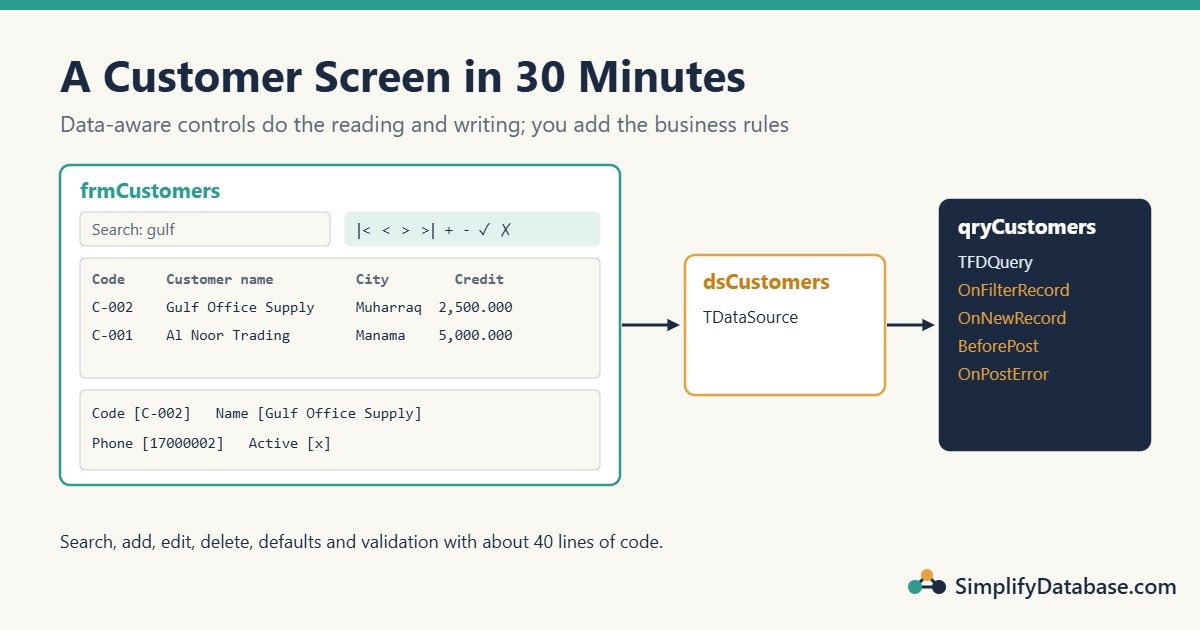
Table of Contents
Step 1: Create the Customers Table (3 minutes)
Run this in SSMS. The rest of the series uses the same small ERP database, so keep it.
CREATE TABLE dbo.Customers (
    CustomerID   INT IDENTITY(1,1) NOT NULL PRIMARY KEY,
    CustomerCode VARCHAR(20)   NOT NULL UNIQUE,
    CustomerName NVARCHAR(100) NOT NULL,
    Phone        VARCHAR(30)   NULL,
    Email        VARCHAR(100)  NULL,
    City         NVARCHAR(50)  NULL,
    CreditLimit  DECIMAL(12,3) NOT NULL DEFAULT 0 CHECK (CreditLimit >= 0),
    IsActive     BIT           NOT NULL DEFAULT 1
);

INSERT INTO dbo.Customers (CustomerCode, CustomerName, Phone, City, CreditLimit)
VALUES ('C-001', N'Al Noor Trading',  '17000001', N'Manama',   5000),
       ('C-002', N'Gulf Office Supply', '17000002', N'Muharraq', 2500),
       ('C-003', N'Sara Electronics',  '17000003', N'Riffa',    0);
The table already protects itself: CustomerCode must be unique and CreditLimit can’t be negative. The Delphi screen will add friendly messages on top, but the database is the last line of defence. (More on this in SQL Constraints Explained Simply.)
Step 2: Add a Data Module (5 minutes)
In a real ERP, every form shares one connection. Put it in a data module:
- File → New → Other → Delphi → Data Module. Name it
DMand save the unit asuDM.pas. - Drop a
TFDConnectionon it, name itConn, and set it up for your SQL Server as shown in the FireDAC connection article. - Drop a
TFDPhysMSSQLDriverLinkand aTFDGUIxWaitCursortoo. - Set
Conn.LoginPrompt := Falseand test with Connected = True in the Object Inspector. Then set it back to False; the app connects at runtime. - In Project → Options → Application → Forms, move
DMto the top of the auto-create list so it’s created before any form.
Edition note: FireDAC access to SQL Server needs Delphi Enterprise or higher. In Community or Professional, use a TADOConnection here and a TADOQuery in Step 3. Everything else in this article is the same.
Step 3: The Query and the DataSource (3 minutes)
Create a new form, frmCustomers (unit uCustomers.pas), and add uDM to its uses clause (File → Use Unit). Then drop:
- A
TFDQuerynamedqryCustomers, withConnection = DM.Connand this SQL:
SELECT CustomerID, CustomerCode, CustomerName, Phone, Email, City, CreditLimit, IsActive
FROM dbo.Customers
ORDER BY CustomerName- A
TDataSourcenameddsCustomers, withDataSet = qryCustomers.
Now the time-saving trick: double-click qryCustomers to open the Fields Editor, right-click → Add all fields. This creates a persistent field object for each column. Select a field to set properties without code:
| Field | Property | Value |
|---|---|---|
CustomerID | Visible | False (users don’t need to see it) |
CustomerCode | DisplayLabel | Code |
CustomerName | DisplayLabel | Customer name |
CreditLimit | DisplayFormat | #,##0.000 |
IsActive | DisplayLabel | Active |
Step 4: Design the Form by Dragging (8 minutes)
- Drop a
TPanelat the top (Align = alTop). On it, put aTLabel“Search:”, aTEditnamededtSearch, and aTDBNavigatorwithDataSource = dsCustomers. - Drop a
TDBGrid(Align = alClient,DataSource = dsCustomers). SetOptions.dgRowSelectto True if you want the grid read-only, and edit in the fields below instead. - Drop a second
TPanelat the bottom (Align = alBottom, height about 150). - Now drag fields from the Fields Editor onto the bottom panel. Delphi creates a label and a matching
TDBEdit(orTDBCheckBoxforIsActive) for each field, already connected todsCustomers.
Run the app now (F9) and add qryCustomers.Open to the form’s OnCreate event:
procedure TfrmCustomers.FormCreate(Sender: TObject);
begin
  qryCustomers.Open;
end;
You already have a working screen: browse, add, edit, delete, save and cancel. FireDAC reads the table’s primary key and generates the INSERT, UPDATE and DELETE statements itself. It also knows CustomerID is an identity column and fills it in after an insert.
Step 5: Add Search (4 minutes)
For a customer list of a few thousand rows, filtering the rows already loaded is instant and simple. Use the dataset’s OnFilterRecord event:
procedure TfrmCustomers.qryCustomersFilterRecord(DataSet: TDataSet; var Accept: Boolean);
var
  S: string;
begin
  S := LowerCase(Trim(edtSearch.Text));
  Accept := (S = '')
    or (Pos(S, LowerCase(DataSet.FieldByName('CustomerName').AsString)) > 0)
    or (Pos(S, LowerCase(DataSet.FieldByName('CustomerCode').AsString)) > 0);
end;

procedure TfrmCustomers.edtSearchChange(Sender: TObject);
begin
  qryCustomers.Filtered := False;   // switching it off and on again re-runs the filter
  qryCustomers.Filtered := Trim(edtSearch.Text) <> '';
end;
Typing “gulf” or “C-00” now narrows the grid as you type. The search ignores upper/lower case and matches anywhere in the name.
For very large tables (hundreds of thousands of rows), don’t load everything. Search on the server instead with a WHERE ... LIKE and a parameter, as shown in Parameterised Queries in Delphi.
Step 6: Defaults and Validation (5 minutes)
When the user presses Insert, give the new row sensible defaults with OnNewRecord:
procedure TfrmCustomers.qryCustomersNewRecord(DataSet: TDataSet);
begin
  DataSet.FieldByName('IsActive').AsBoolean := True;
  DataSet.FieldByName('CreditLimit').AsCurrency := 0;
end;
Before saving, check the data with BeforePost. Raising an exception here cancels the save, and the user sees the message:
procedure TfrmCustomers.qryCustomersBeforePost(DataSet: TDataSet);
begin
  if Trim(DataSet.FieldByName('CustomerCode').AsString) = '' then
    raise Exception.Create('Please enter a customer code.');
  if Trim(DataSet.FieldByName('CustomerName').AsString) = '' then
    raise Exception.Create('Please enter the customer name.');
  if DataSet.FieldByName('CreditLimit').AsCurrency < 0 then
    raise Exception.Create('Credit limit cannot be negative.');
end;
Step 7: Friendly Error for a Duplicate Code (2 minutes)
If the user enters a code that already exists, SQL Server rejects it with a long technical message. FireDAC tells you what kind of error it was, so you can show something clearer. Add FireDAC.Stan.Error to the uses clause, then handle OnPostError:
procedure TfrmCustomers.qryCustomersPostError(DataSet: TDataSet;
  E: EDatabaseError; var Action: TDataAction);
begin
  if (E is EFDDBEngineException) and
     (EFDDBEngineException(E).Kind = ekUKViolated) then
  begin
    ShowMessage('This customer code already exists. Please use another code.');
    Action := daAbort;   // stay in edit mode so the user can fix it
  end;
end;
ekUKViolated means a unique key was violated. Other useful kinds are ekFKViolated (a foreign key) and ekRecordLocked.
The Result
In about 30 minutes you have a screen that:
- Lists customers in a grid, sorted by name
- Searches as you type
- Adds, edits and deletes with the navigator (with a delete confirmation built in)
- Fills defaults for new customers
- Validates before saving and shows clear messages
- Is protected by constraints in the database too
That’s the same pattern for items, suppliers, accounts, warehouses and most master data screens in an ERP. Once you’ve built one, the next takes 10 minutes.
Common Mistakes
- A connection on every form. It opens many connections and makes transactions harder. Use one connection in a data module.
- Leaving
Connected = Trueat design time. The app then tries to connect to your server on the user’s PC. Connect at runtime. - Validation only in Delphi. Another app or a script can still insert bad data. Keep constraints in SQL Server as well.
- Loading huge tables to filter locally. Fine for thousands of rows, slow for millions. Search on the server for big tables.
- Building filters or SQL by joining user text. That’s how SQL injection happens. Use
OnFilterRecordor parameters.
Practice Exercises
- Add a “Show inactive” checkbox. By default, hide customers where
IsActiveis False. - Make the Esc key cancel an edit and F2 start editing the current row.
- A customer that has invoices can’t be deleted (a foreign key will stop it once the invoice tables exist in part 5). Show a friendly message instead of the SQL Server error.
Answers
1. Keep the filter always on and add a condition to OnFilterRecord:
// in FormCreate, after Open:
qryCustomers.Filtered := True;

// in qryCustomersFilterRecord, after the search check:
if Accept and not chkShowInactive.Checked then
  Accept := DataSet.FieldByName('IsActive').AsBoolean;

// chkShowInactive.OnClick and edtSearch.OnChange:
qryCustomers.Filtered := False;
qryCustomers.Filtered := True;
2. Set the form’s KeyPreview := True and handle OnKeyDown:
procedure TfrmCustomers.FormKeyDown(Sender: TObject; var Key: Word; Shift: TShiftState);
begin
  if (Key = VK_ESCAPE) and (qryCustomers.State in [dsEdit, dsInsert]) then
    qryCustomers.Cancel
  else if Key = VK_F2 then
    qryCustomers.Edit;
end;
3. Handle OnDeleteError the same way as OnPostError:
procedure TfrmCustomers.qryCustomersDeleteError(DataSet: TDataSet;
  E: EDatabaseError; var Action: TDataAction);
begin
  if (E is EFDDBEngineException) and
     (EFDDBEngineException(E).Kind = ekFKViolated) then
  begin
    ShowMessage('This customer has invoices and cannot be deleted. Set it to inactive instead.');
    Action := daAbort;
  end;
end;
Summary
- A data module holds one shared connection for the whole app.
TFDQuery+TDataSource+ data-aware controls give a full add/edit/delete screen with almost no code.- Persistent fields let you set labels, formats and visibility in the designer.
OnFilterRecordgives quick search;OnNewRecordsets defaults;BeforePostvalidates.OnPostErrorandOnDeleteErrorturn database errors into clear messages.
Next in the series: lookup combo boxes, so the user picks a customer or an account from a list instead of typing an ID.
Delphi for ERP series
All parts in order. New parts appear here as they go live.
New to Delphi? Start with What Is Delphi? Build Your First App.
Related articles
- Delphi vs C# vs Web Apps for Business Software: part 2 of this series.
- How to Show SQL Server Data in a Delphi DBGrid: more grid options.
- SQL Constraints Explained Simply: the database rules behind the screen.
- Delphi Exception Handling: how raise and try..except work.