
A Delphi screen that opens a customer list takes eight seconds. In SSMS, the same query runs in under a second. The database isn’t the problem; the way the application asks for and handles the data is.
FireDAC, Delphi’s data access library, has dozens of options, and a handful of them make a huge difference to speed on SQL Server. This guide walks through the settings that matter most: how rows are fetched, how much metadata is read, how parameters are typed, connection pooling, bulk inserts, timeouts, and how to see what FireDAC actually sends to the server.
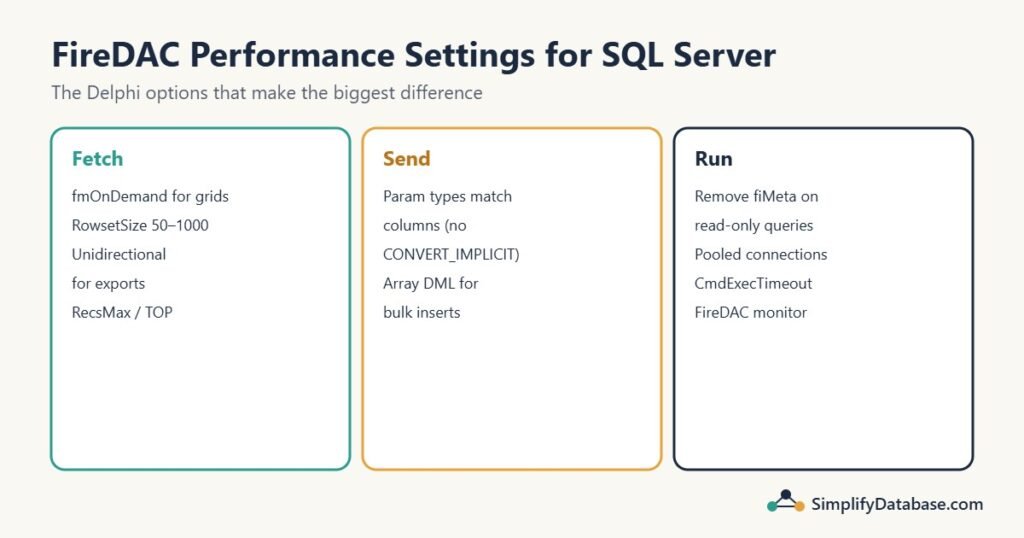
Table of Contents
First, measure: is it the server or the client?
Before changing settings, find out where the time goes. Run the query in SSMS with SET STATISTICS TIME ON. If SSMS takes 0.5 seconds and the Delphi screen takes 8, the extra 7.5 seconds are in the client: fetching too many rows, reading metadata, filling a grid, or a different plan caused by different parameter types.
On the server side, a query that’s waiting with wait type ASYNC_NETWORK_IO while the screen loads is the classic sign: SQL Server finished quickly and is waiting for the application to read the results. If the query itself is slow in SSMS too, start with the server: the SQL Server performance troubleshooting guide covers that side.
1. Fetch options: how many rows, and when
TFDQuery.FetchOptions controls how rows travel from SQL Server to your application.
FetchOptions.Mode
| Mode | What it does | Use it for |
|---|---|---|
fmOnDemand (default) | Fetches a batch of rows, then more as the user scrolls | Grids and lists |
fmAll | Fetches every row when the query opens | Small lookup tables, reports you’ll read completely |
fmManual | Fetches only when you call FetchNext / FetchAll | Full control in code |
fmExactRecsMax | Fetches all rows and raises an error if the count isn’t exactly RecsMax | Checking that a query returns an exact number of rows |
The default, fmOnDemand, is usually right for screens: the grid shows the first rows almost immediately and the rest arrive as the user scrolls. The common mistake is fmAll (or calling FetchAll, or RecordCount on some setups) on a query that returns 200,000 rows to a grid. The user waits for every row to cross the network and be stored in memory, and then looks at the first 30.
fmExactRecsMax is sometimes suggested for performance, but it does the opposite: it reads all the rows to check the count. For large lists, use fmOnDemand.
FetchOptions.RowsetSize (default 50) is how many rows FireDAC asks for in each round trip. For a grid, 50-100 is fine. For a report or export that reads everything anyway, a larger value such as 500 or 1000 means fewer round trips and is noticeably faster over a slow network.
FetchOptions.RecsMax limits the total rows fetched. It’s a safety net for search screens: if a user searches for “a”, you don’t want 300,000 customers. Better still, put the limit in the SQL (SELECT TOP (500) ...) so the server doesn’t produce rows nobody will see.
// A search screen
qryCustomers.FetchOptions.Mode       := fmOnDemand;
qryCustomers.FetchOptions.RowsetSize := 100;
qryCustomers.FetchOptions.RecsMax    := 1000;
FetchOptions.Unidirectional := True tells FireDAC not to keep rows it has already passed. You can only move forward, but memory stays flat no matter how many rows you read. It’s ideal for exports and batch processing, where you read each row once:
qryExport.FetchOptions.Unidirectional := True;
qryExport.FetchOptions.RowsetSize     := 1000;
qryExport.Open;
while not qryExport.Eof do
begin
  WriteLine(qryExport);   // your export code
  qryExport.Next;
end;
2. Don’t read metadata you don’t need
By default, FetchOptions.Items is [fiBlobs, fiDetails, fiMeta]. The fiMeta part makes FireDAC read extra information about the query’s columns, such as which ones form the primary key, so it can generate UPDATE and DELETE statements automatically when you edit the dataset.
For a read-only query (a report, a lookup, a list you never edit directly), that metadata is wasted work, and on some queries it means extra round trips to the server. Remove it:
qryReport.FetchOptions.Items := qryReport.FetchOptions.Items - [fiMeta];
qryReport.UpdateOptions.ReadOnly := True;
Keep fiMeta on datasets you edit through data-aware controls. Removing fiBlobs is also worth considering for lists that include large text or image columns you don’t display: the BLOBs are then fetched only when you actually access the field.
3. Match parameter types to the columns
This one doesn’t look like a performance setting, but it can be the biggest of all.
qryCustomer.SQL.Text := 'SELECT CustomerID, Name FROM dbo.Customers WHERE Email = :Email';
qryCustomer.ParamByName('Email').AsWideString := Edit1.Text;
If the Email column is VARCHAR but the parameter goes to SQL Server as NVARCHAR (a Unicode string, which is what AsWideString sends), SQL Server must convert the column’s values before comparing them. With the common SQL_Latin1_General_CP1_CI_AS collation, that turns an index seek into a full scan: the query reads every row instead of a few. In the execution plan, you’ll see a CONVERT_IMPLICIT warning.
The fix is to make the parameter type match the column exactly:
qryCustomer.ParamByName('Email').DataType := ftString;      // VARCHAR column
qryCustomer.ParamByName('Email').Size     := 100;
qryCustomer.ParamByName('Email').AsString := Edit1.Text;

// For NVARCHAR columns use ftWideString / AsWideString
Setting the Size too helps SQL Server reuse one cached plan instead of creating a new one for every different string length. Don’t guess what FireDAC sends: check it with the monitor (section 7) or in the plan. This mismatch is one of the most common reasons a query is “fast in SSMS, slow in the application”, along with parameter sniffing. Always use parameters rather than building SQL strings, both for speed (plan reuse) and safety; see Parameterised Queries in Delphi.
4. Connection pooling
Opening a connection to SQL Server takes time: a network handshake, authentication, maybe encryption setup. An application that opens and closes a connection for every operation (common in multi-tier servers and web services written in Delphi) pays that cost again and again.
FireDAC can keep a pool of open connections and hand one out instantly. Pooling works with a connection definition registered in FDManager, not with parameters set directly on a TFDConnection:
var
  Params: TStringList;
begin
  Params := TStringList.Create;
  try
    Params.Add('Server=SQLSRV01');
    Params.Add('Database=Shop');
    Params.Add('OSAuthent=Yes');
    Params.Add('Pooled=True');
    Params.Add('POOL_MaximumItems=50');
    FDManager.AddConnectionDef('ShopPool', 'MSSQL', Params);
  finally
    Params.Free;
  end;
end;

// Later, anywhere:
Conn := TFDConnection.Create(nil);
Conn.ConnectionDefName := 'ShopPool';
Conn.Connected := True;      // taken from the pool
// ... work ...
Conn.Free;                   // returned to the pool, not closed
For a classic desktop application that opens one connection at start-up and keeps it open, pooling makes little difference. For servers handling many short requests, it’s essential.
5. Bulk inserts with Array DML
Inserting 10,000 rows one ExecSQL at a time means 10,000 round trips to the server. FireDAC’s Array DML sends many rows in one go:
const
  BatchSize = 1000;
var
  i: Integer;
begin
  qryInsert.SQL.Text :=
    'INSERT INTO dbo.Products (SKU, Name, Price) VALUES (:SKU, :Name, :Price)';
  qryInsert.Params.ArraySize := BatchSize;

  for i := 0 to BatchSize - 1 do
  begin
    qryInsert.Params[0].AsStrings[i]  := SKUs[i];
    qryInsert.Params[1].AsStrings[i]  := Names[i];
    qryInsert.Params[2].AsCurrencys[i] := Prices[i];
  end;

  qryInsert.Execute(BatchSize, 0);
end;
Each Execute call inserts the whole batch. Compared with a loop of single inserts, it’s typically many times faster, especially when the database is on another machine. Wrap the batches in a transaction (StartTransaction / Commit) so a failure doesn’t leave half the data in. This is the technique to use in Import a CSV File into SQL Server from Delphi when the files get large.
6. Timeouts and keeping the screen responsive
ResourceOptions.CmdExecTimeout sets how long FireDAC waits for a command, in milliseconds. FireDAC’s default is effectively no limit, which means a blocked query can freeze a screen forever. A sensible value for screens is 30 seconds; give reports a longer value on their own query components:
FDConnection1.ResourceOptions.CmdExecTimeout := 30000;   // 30 seconds for everything
qryMonthEndReport.ResourceOptions.CmdExecTimeout := 300000;   // 5 minutes for this one
ResourceOptions.CmdExecMode controls whether the UI freezes while a query runs. The default amBlocking blocks the calling thread. amCancelDialog shows a small dialog with a Cancel button during long queries (add a TFDGUIxAsyncExecuteDialog component to the form), so users can stop a query instead of killing the application.
When a query is cancelled or times out, make sure any open transaction is rolled back, or its locks stay behind and block other users. The server side of this is explained in SQL Server Query Timeouts, including why SET XACT_ABORT ON belongs in your stored procedures.
7. See what FireDAC actually sends
Guessing is slow. FireDAC can log every command, with parameter values and types, using the monitor components.
- Drop a
TFDMoniFlatFileClientLinkon your data module and set itsFileName(for exampleC:\Temp\firedac-trace.txt). - Add
MonitorBy=FlatFileto the connection parameters. - Set
Tracing := Trueon the link.
The trace shows each SQL statement, its parameters with their data types, and how long it took. It’s the quickest way to spot an N+1 pattern (the same query running once per row), a parameter going as ftWideString against a VARCHAR column, or metadata queries you didn’t expect. Turn it off in production; it writes a lot. On the server side, an Extended Events session or Query Store shows the same statements from SQL Server’s point of view.
8. Grid and loop habits
A few coding habits matter as much as the settings:
DisableControls/EnableControlsaround any loop over a dataset that’s connected to a grid. Without it, the grid repaints on everyNext:
qryOrders.DisableControls;
try
  qryOrders.First;
  while not qryOrders.Eof do
  begin
    Total := Total + qryOrders.FieldByName('Amount').AsCurrency;
    qryOrders.Next;
  end;
finally
  qryOrders.EnableControls;
end;- Let SQL Server do the maths. The loop above should really be
SELECT SUM(Amount) ...: one row back instead of thousands. - Use
FieldByNameonce, outside the loop, and keep theTFieldin a variable when looping over many rows. - Filter in SQL, not with the dataset’s
Filterproperty, for large tables. A client-side filter still fetches every row first. - Don’t open every lookup table at form start-up. Open them when the user needs them, or cache small ones once per session.
Quick reference
| Situation | Settings |
|---|---|
| Grid or list | fmOnDemand, RowsetSize 50-100, RecsMax or TOP as a safety net |
| Read-only report | remove fiMeta, ReadOnly := True, larger RowsetSize |
| Export or batch read | Unidirectional := True, RowsetSize 500-1000 |
| Bulk insert | Array DML (Params.ArraySize, Execute(n)) in a transaction |
| Many short connections | FDManager connection definition with Pooled=True |
| Long-running query | CmdExecTimeout per query, amCancelDialog |
| “Fast in SSMS, slow in app” | Check parameter types and sizes, then parameter sniffing |
Practice exercises
Exercise 1. A customer search screen fetches all 250,000 customers before showing anything. Which two settings (or changes) would you make first?
Exercise 2. An export of 2 million rows runs out of memory. What FireDAC option fixes it?
Exercise 3. A query on WHERE AccountNo = :AccountNo is slow from Delphi but fast in SSMS. AccountNo is VARCHAR(20) and indexed. What should you check first?
Answers
Answer 1. Use FetchOptions.Mode := fmOnDemand (and make sure nothing calls FetchAll or forces all rows to load), and limit the result: a TOP (n) in the SQL or FetchOptions.RecsMax. Better still, don’t run the search until the user types something specific.
Answer 2. FetchOptions.Unidirectional := True, so FireDAC doesn’t keep the rows it has already read, plus a larger RowsetSize for fewer round trips.
Answer 3. The parameter type. If FireDAC sends :AccountNo as NVARCHAR (ftWideString), SQL Server converts the VARCHAR column and can’t seek on the index. Set DataType := ftString and Size := 20 to match the column, and confirm with the FireDAC monitor or the execution plan.
Summary
- Measure first: if SSMS is fast and the screen is slow, the time is in the client.
- Fetch only what’s needed:
fmOnDemandfor grids,Unidirectionalfor exports, a sensibleRowsetSizeandRecsMax. - Remove
fiMetaon read-only queries. - Make parameter types and sizes match the columns to avoid implicit conversions.
- Use pooling for many short connections and Array DML for bulk inserts.
- Set timeouts per query, keep the UI responsive, and roll back on errors.
- Use the FireDAC monitor to see exactly what’s sent.
Related articles
- How to Fix Query Timeout and Performance Issues in Delphi Applications: the wider guide to slow Delphi screens on SQL Server.
- How to Connect Delphi to SQL Server with FireDAC: the basics of TFDConnection and TFDQuery.
- Why Is My Stored Procedure Slow?: when the time really is on the server.
- SQL Server Query Timeouts: what happens on the server when FireDAC gives up.