
A user clicks “Run report”, waits, and gets this:
Execution Timeout Expired. The timeout period elapsed prior to completion
of the operation or the server is not responding.
The first reaction is usually to raise the timeout from 30 seconds to 300 and move on. Sometimes that’s fine. More often it just turns a fast error into a slow one, and the real problem stays.
Here’s the thing most people don’t know: SQL Server itself almost never cancels a query for taking too long. The timeout comes from the application. This guide explains where timeouts come from, how to see them from the server side, the five usual causes, and the one setting that stops a timeout from turning into a blocking problem.
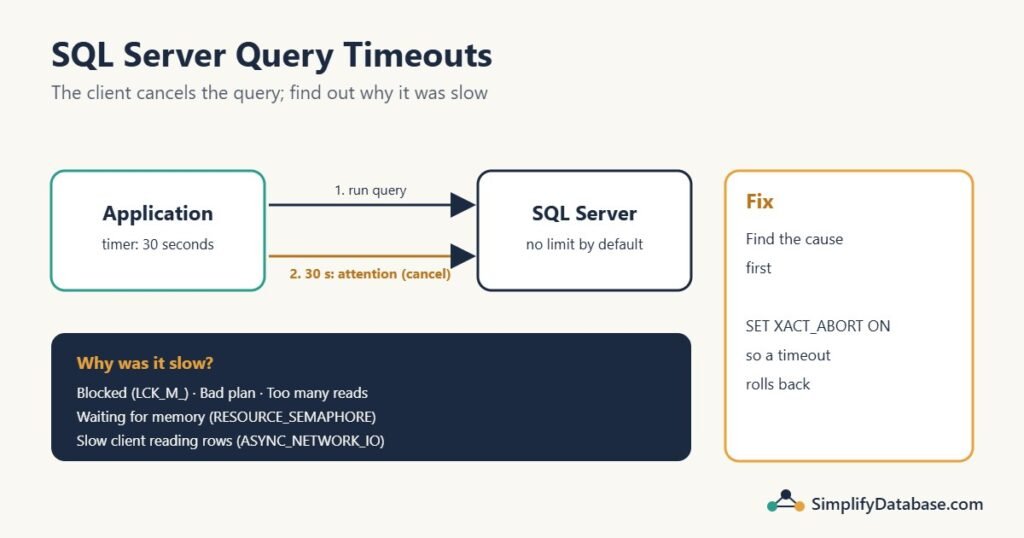
Table of Contents
Who actually cancels the query?
By default, SQL Server lets a query run as long as it needs. The timer runs in the client library your application uses:
| Client | Setting | Default |
|---|---|---|
.NET (SqlCommand) | CommandTimeout | 30 seconds |
| Delphi FireDAC | ResourceOptions.CmdExecTimeout | No limit |
Delphi ADO (TADOQuery) | CommandTimeout | 30 seconds |
| JDBC | setQueryTimeout / queryTimeout | No limit |
| PHP / Laravel (PDO with sqlsrv) | PDO::SQLSRV_ATTR_QUERY_TIMEOUT | No limit |
| SSMS | Tools → Options → Query Execution | 0 (no limit) |
When the timer expires, the client sends SQL Server an attention signal (“stop what you’re doing for me”), and SQL Server cancels the running statement. That’s why a query can time out in the application but run to the end in SSMS: SSMS simply waits forever.
Don’t confuse it with the connection timeout (usually 15 seconds). That one fires when the application can’t even connect: the server name is wrong, the server is down, or a firewall is in the way. Nothing ran at all.
There are a few timeouts that do come from SQL Server, with their own error messages:
- Error 1222, “Lock request time out period exceeded”: someone ran
SET LOCK_TIMEOUTand the query waited too long for a lock. - Error 8645, waiting for memory: the query waited too long for a memory grant (see cause 4 below).
- Linked server queries: the
remote query timeoutsetting (default 600 seconds) applies to queries sent to another server.
If the message says “Execution Timeout Expired” (or the equivalent in your language or driver), it’s the client’s timer.
Step 1: See the timeouts from the server side
The application log tells you a timeout happened, but rarely the exact query. Two ways to find it in SQL Server:
Query Store: aborted executions
If Query Store is on (it is by default for new databases since SQL Server 2022), every query cancelled by the client is recorded as Aborted:
SELECT TOP (20)
       q.query_id,
       qt.query_sql_text,
       SUM(rs.count_executions)           AS aborted_runs,
       MAX(rs.max_duration) / 1000        AS max_duration_ms,
       MAX(rs.last_execution_time)        AS last_seen
FROM sys.query_store_runtime_stats AS rs
JOIN sys.query_store_plan          AS p  ON p.plan_id = rs.plan_id
JOIN sys.query_store_query         AS q  ON q.query_id = p.query_id
JOIN sys.query_store_query_text    AS qt ON qt.query_text_id = q.query_text_id
WHERE rs.execution_type = 3          -- 3 = Aborted (cancelled by the client)
GROUP BY q.query_id, qt.query_sql_text
ORDER BY aborted_runs DESC;
If max_duration_ms sits right at 30,000 for most of them, that’s the 30-second default timer.
Extended Events: catch every attention
To catch timeouts as they happen, with the user and application, create a small Extended Events session on the attention event:
CREATE EVENT SESSION Timeouts ON SERVER
ADD EVENT sqlserver.attention (
    ACTION (sqlserver.client_app_name,
            sqlserver.client_hostname,
            sqlserver.database_name,
            sqlserver.username,
            sqlserver.session_id,
            sqlserver.sql_text)
)
ADD TARGET package0.event_file (SET filename = N'Timeouts')
WITH (STARTUP_STATE = ON);

ALTER EVENT SESSION Timeouts ON SERVER STATE = START;
Leave it running, and when users report a timeout, open the session in SSMS (Management → Extended Events → Sessions → Timeouts → package0.event_file) and look at the time. A user pressing “Cancel” in an application also shows up as an attention, so match the times with the reports.
Step 2: Find out why the query was slow
A timeout is just “it took longer than the timer”. The real question is what the query was doing. Run the query in SSMS (where it won’t time out), or watch it while it runs, and check these five causes in order.
Cause 1: It was blocked
The query wasn’t slow at all; it was waiting for another session to release a lock. This is the most common cause of “it’s usually fast but sometimes times out”. While it’s waiting, this shows it:
SELECT session_id, blocking_session_id, wait_type, wait_time / 1000 AS wait_s,
       DB_NAME(database_id) AS database_name
FROM sys.dm_exec_requests
WHERE blocking_session_id <> 0;
If you see rows with LCK_M_... waits, follow SQL Server Blocking: How to Find the Blocking Session.
Cause 2: It got a bad plan
The query used to be fast and suddenly isn’t, with no code change. Usually it’s either parameter sniffing (a plan built for unusual parameter values) or outdated statistics after a big data load. In the actual execution plan, compare estimated and actual rows: a difference of 10x or more is the clue.
Cause 3: It really does too much work
The plan scans millions of rows because an index is missing, or a function on a column stops SQL Server from using the index you have. SET STATISTICS IO ON shows the logical reads; anything in the millions for a screen that shows 50 rows is a red flag. See Index Seek vs Index Scan and Missing Indexes in SQL Server.
Cause 4: It waited for memory
Big sorts and hash joins need a memory grant before they can start. When the server is busy, queries queue for memory with the wait type RESOURCE_SEMAPHORE:
SELECT session_id, requested_memory_kb / 1024 AS requested_mb,
       granted_memory_kb, wait_time_ms / 1000 AS waited_s
FROM sys.dm_exec_query_memory_grants
WHERE granted_memory_kb IS NULL;     -- still waiting
Rows here mean queries are waiting in line for memory. The fix is usually the query asking for too much (a huge sort, a bad estimate), not the server needing more RAM.
Cause 5: The application was slow to read the results
If the wait type of the running query is ASYNC_NETWORK_IO, SQL Server had the results ready and was waiting for the application to fetch them. The query was fast; the client is reading 200,000 rows one by one, or doing work between rows. Return fewer rows, page the results, or fetch them in one go. Desktop apps that load a whole table into a grid are the classic case, covered in How to Fix Query Timeout and Performance Issues in Delphi Applications.
The hidden danger: open transactions after a timeout
This one causes real damage, and it’s easy to miss.
When the client cancels a query, SQL Server stops the statement. It does not automatically roll back the transaction. Picture this procedure:
CREATE PROCEDURE dbo.ApproveInvoice @InvoiceID INT
AS
BEGIN
    BEGIN TRANSACTION;
        UPDATE dbo.Invoices SET Status = 'Approved' WHERE InvoiceID = @InvoiceID;
        UPDATE dbo.Ledger   SET ...;      -- slow: the app times out here
    COMMIT;
END;
The timeout cancels the second UPDATE. The transaction is still open, holding a lock on the invoice. If the application reuses that connection from a connection pool and doesn’t roll back, the lock can stay for minutes, and now other users are blocked and time out too. One timeout turns into many.
The fix is one line at the top of every procedure that uses a transaction:
SET XACT_ABORT ON;With XACT_ABORT ON, an attention (timeout) or a runtime error rolls back the whole transaction automatically, so no locks are left behind. Combine it with TRY...CATCH for error handling:
CREATE PROCEDURE dbo.ApproveInvoice @InvoiceID INT
AS
BEGIN
    SET NOCOUNT ON;
    SET XACT_ABORT ON;

    BEGIN TRY
        BEGIN TRANSACTION;
            UPDATE dbo.Invoices SET Status = 'Approved' WHERE InvoiceID = @InvoiceID;
            -- ... more work ...
        COMMIT;
    END TRY
    BEGIN CATCH
        IF @@TRANCOUNT > 0 ROLLBACK;
        THROW;
    END CATCH
END;
(The CATCH block won’t run for a timeout, because the client has already stopped listening. That’s exactly why XACT_ABORT ON matters: it handles the case CATCH can’t.) More about transactions in SQL Transactions and ACID Explained Simply.
So should you raise the timeout?
Sometimes, yes. A month-end report that reads three years of data may legitimately need two minutes, and a 30-second limit makes no sense for it. A reasonable approach:
- Screens and searches: keep a short timeout (30 seconds or less). If they time out, fix the query; users won’t wait anyway.
- Reports and exports: set a longer timeout for those commands only, not for the whole application.
- Batch jobs: a long or no timeout is fine, but run them outside busy hours.
What you shouldn’t do is set CommandTimeout = 0 everywhere. A query that’s blocked will then wait forever, holding its own locks, while users keep clicking “Run” again and stacking up more sessions.
Checklist
- Is it a command timeout (query ran too long) or a connection timeout (couldn’t connect)?
- Find the query: Query Store aborted executions, or an Extended Events session on
attention. - While it runs, check
sys.dm_exec_requests: blocking (LCK_M_), memory (RESOURCE_SEMAPHORE) or the client (ASYNC_NETWORK_IO)? - If it’s just slow, check the plan: estimated vs actual rows, scans, missing indexes.
- Add
SET XACT_ABORT ONto procedures with transactions. - Raise the timeout only for commands that legitimately need it.
Practice exercises
Exercise 1. A report times out after exactly 30 seconds in a .NET application but finishes in 50 seconds in SSMS. What’s happening, and what are your two options?
Exercise 2. After a timeout, other users start getting timeouts on the same table for several minutes. What’s the likely cause, and what’s the fix?
Exercise 3. A query’s wait type is ASYNC_NETWORK_IO for most of its run time. Will adding an index help? Why or why not?
Answers
Answer 1. The .NET CommandTimeout defaults to 30 seconds and cancels the query; SSMS has no limit. Either make the query faster (check the plan, indexes and statistics), or, if 50 seconds is acceptable for this report, raise CommandTimeout for this one command.
Answer 2. The timed-out session left a transaction open, still holding its locks, so everyone else is blocked behind it. Add SET XACT_ABORT ON to the procedure so a timeout rolls the transaction back, and make sure the application rolls back on errors.
Answer 3. Probably not. ASYNC_NETWORK_IO means SQL Server is waiting for the application to fetch the results. The fix is on the client side: return fewer rows, page them, or read them faster.
Summary
- “Execution Timeout Expired” comes from the client’s timer (often 30 seconds), not from SQL Server.
- The client sends an attention to cancel; you can see these in Query Store (aborted executions) and with an Extended Events session.
- The usual causes: blocking, a bad plan, too much work, waiting for memory, or a slow client reading results.
- A timeout doesn’t roll back the transaction. Use
SET XACT_ABORT ONso it does. - Fix the cause first; raise the timeout only for commands that genuinely need longer.
Part of a series: this article is one step in my SQL Server Performance Troubleshooting: A Practical Step-by-Step Guide, which walks through the whole process of finding and fixing a slow query.
Related articles
- How to Fix Query Timeout and Performance Issues in Delphi Applications: the client-side view of timeouts in a desktop app.
- SQL Server Blocking: the most common reason a fast query suddenly times out.
- SQL Server Parameter Sniffing: fast in SSMS, slow in the app.
- SQL Server Deadlocks: when sessions wait for each other in a circle.