
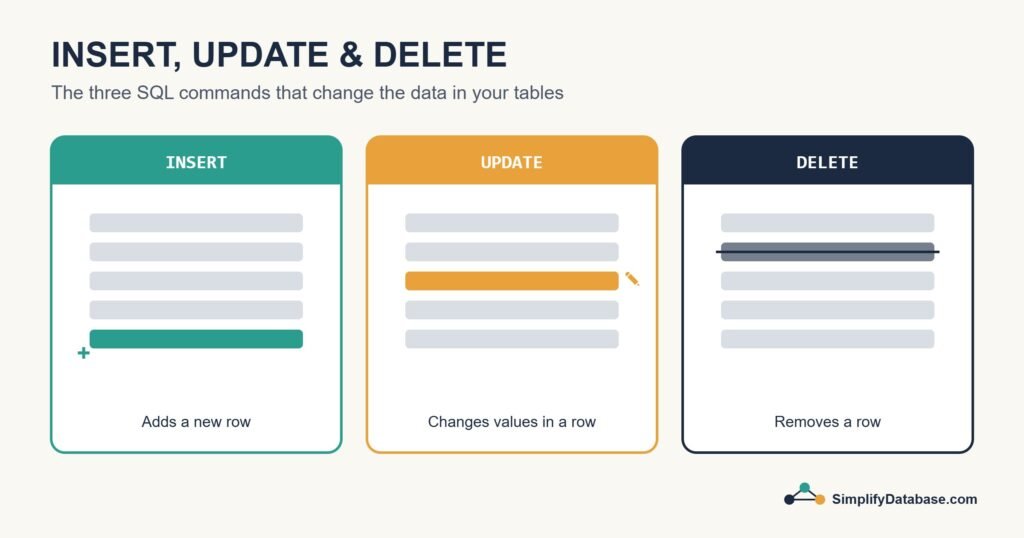
Most SQL tutorials spend weeks on SELECT, and that makes sense, because reading data is what you’ll do most. But sooner or later you need to change data: add a new customer, fix a typo in a price, remove a test order. That’s the job of three commands: INSERT, UPDATE and DELETE.
They’re simple to learn. They’re also the commands that can do real damage if you’re careless, so along with the syntax I’ll share the habits that have saved me more than once.
The Sample Table
We’ll work with a small products table:
CREATE TABLE products (
    product_id INT PRIMARY KEY,
    name       VARCHAR(100) NOT NULL,
    price      DECIMAL(10,2) NOT NULL,
    stock      INT DEFAULT 0
);| product_id | name | price | stock |
|---|---|---|---|
| 1 | Notebook | 2.50 | 120 |
| 2 | Pen | 0.80 | 300 |
| 3 | Backpack | 18.00 | 25 |
INSERT: Adding New Rows
INSERT INTO adds rows to a table. You list the columns, then the values in the same order:
INSERT INTO products (product_id, name, price, stock)
VALUES (4, 'Stapler', 6.75, 40);
The table now has four rows. A few things worth knowing:
- Text and dates go in single quotes. Numbers don’t.
- Always list the column names, even though SQL lets you skip them. If someone adds a column to the table later, an
INSERTwithout column names will break or, worse, put values in the wrong columns. - If you leave a column out, it gets its default value (here
stockwould be 0) orNULL.
Inserting several rows at once
Most databases let you add many rows in one statement, which is faster than running one INSERT per row:
INSERT INTO products (product_id, name, price, stock)
VALUES
    (5, 'Ruler',  1.20, 80),
    (6, 'Eraser', 0.50, 150),
    (7, 'Marker', 1.90, 60);
Inserting from another table
You can also insert the result of a query. This is handy for copying or archiving data:
INSERT INTO products_archive (product_id, name, price)
SELECT product_id, name, price
FROM products
WHERE stock = 0;
Letting the database pick the id
In real systems you rarely type the id yourself. The column is set to generate it (AUTO_INCREMENT in MySQL, IDENTITY in SQL Server, GENERATED ALWAYS AS IDENTITY in PostgreSQL), and you just leave it out of the insert. There’s more on that in Primary Keys vs. Foreign Keys.
UPDATE: Changing Existing Rows
UPDATE changes values in rows that already exist. You say which table, which columns get which new values, and which rows to touch:
UPDATE products
SET price = 2.75
WHERE product_id = 1;
Only the notebook changes. You can update several columns at once, and you can use the current value in the calculation:
-- 10% price increase and 50 more in stock for the backpack
UPDATE products
SET price = price * 1.10,
    stock = stock + 50
WHERE product_id = 3;
The backpack is now 19.80 with 75 in stock.
The mistake everyone makes once
Look at this:
UPDATE products
SET price = 0;
There’s no WHERE. SQL doesn’t ask “are you sure?”. It sets the price of every product to zero. I’ve seen this happen on a live system, and the restore took most of an afternoon. The WHERE clause is what limits the change, and it works exactly like it does in a SELECT (see WHERE, ORDER BY and LIMIT).
DELETE: Removing Rows
DELETE removes whole rows. Again, WHERE decides which ones:
DELETE FROM products
WHERE product_id = 2;
The pen is gone. And just like UPDATE, a DELETE without WHERE empties the whole table:
DELETE FROM products; -- removes every row!DELETE vs. TRUNCATE vs. DROP
These three get mixed up a lot:
| Command | What it removes | Can use WHERE? | Notes |
|---|---|---|---|
DELETE | Some or all rows | Yes | Row by row, can be rolled back, fires triggers |
TRUNCATE TABLE | All rows | No | Much faster on big tables, resets identity counters in most databases |
DROP TABLE | The rows and the table itself | No | The table no longer exists afterwards |
Deleting rows that other tables depend on
If an orders table has a foreign key pointing at products, the database will usually refuse to delete a product that still has orders. That’s a good thing. It stops you creating orphan rows. Many systems don’t delete at all and use a “soft delete” instead, like an is_active column set to 0, so history is kept.
Habits That Keep Your Data Safe
These have saved me from disaster more than once:
- Run a SELECT first. Write the
WHEREclause as aSELECT, check the rows it returns, then changeSELECT *toUPDATEorDELETE. - Use a transaction. Start with
BEGIN TRANSACTION, run your change, check the result, thenCOMMITorROLLBACK. I explain this properly in SQL Transactions and ACID Explained. - Filter on the primary key whenever you mean one specific row.
WHERE name = 'Pen'might match more rows than you expect. - Check the “rows affected” message. If you expected 1 and it says 4,000, something is wrong.
- Don’t experiment on production. Test on a copy first.
Quick Reference
| Task | Command |
|---|---|
| Add a row | INSERT INTO t (a, b) VALUES (1, 'x'); |
| Add many rows | INSERT INTO t (a, b) VALUES (1,'x'), (2,'y'); |
| Copy rows from a query | INSERT INTO t (a, b) SELECT a, b FROM s WHERE ...; |
| Change values | UPDATE t SET b = 'z' WHERE a = 1; |
| Remove rows | DELETE FROM t WHERE a = 1; |
| Remove all rows fast | TRUNCATE TABLE t; |
Conclusion
INSERT adds rows, UPDATE changes them and DELETE removes them. The syntax takes ten minutes to learn. The real skill is being careful: always think about your WHERE clause, check before you change, and use transactions when it matters.
If you’re still getting comfortable reading data, go back to SQL for Complete Beginners. Otherwise, the natural next step is learning how transactions protect your changes.
Related articles
- SQL Constraints Explained Simply: NOT NULL, UNIQUE, CHECK and DEFAULT.
- SQL Triggers Explained Simply: run code automatically when data changes.
- SQL Injection Explained Simply: how attacks work and how to stop them.
- SQL Data Types Explained Simply: choosing the right type for each column.