
The classic Delphi screen is a grid full of data from the database: customers, invoices, stock items. Delphi makes this surprisingly quick. With three components and a few lines of code you’ll have a searchable, sortable, editable grid over a SQL Server table.
This article builds that screen step by step. It’s part of the Delphi + SQL Server track of the Learn Delphi series, so you should already have a working connection from How to Connect Delphi to SQL Server with FireDAC and know parameterised queries.
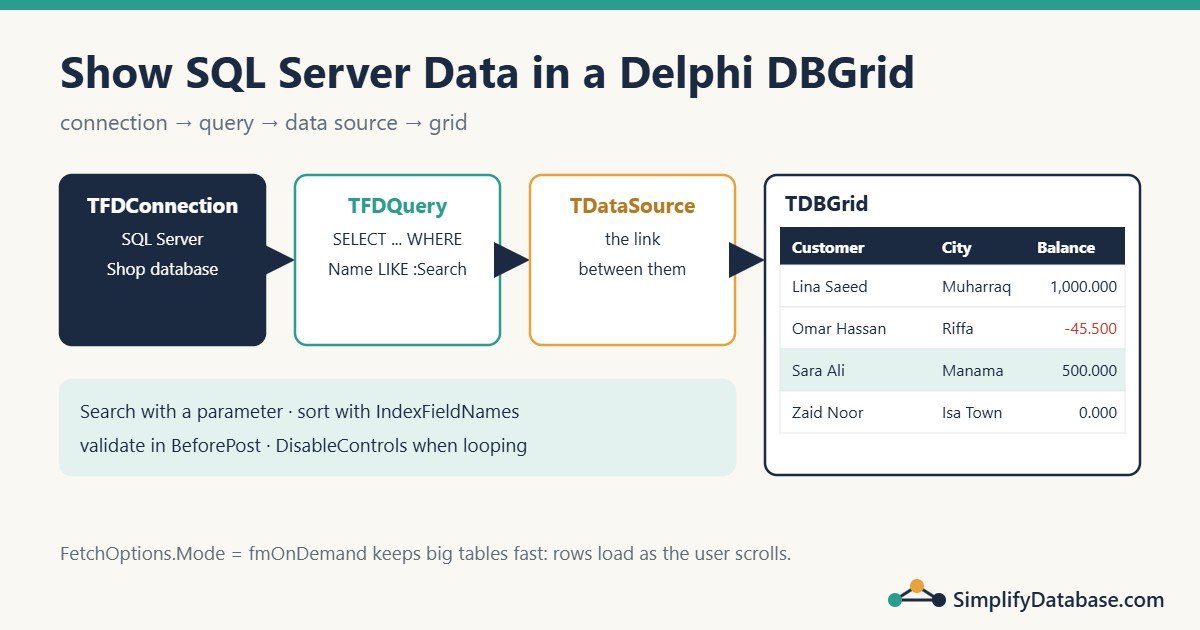
Table of Contents
The Data Chain
Data-aware screens in Delphi always follow the same chain:
TFDConnection  →  TFDQuery  →  TDataSource  →  TDBGrid (and TDBEdit, TDBNavigator...)
(database) (the rows) (the link) (what the user sees)| Component | Palette page | Job |
|---|---|---|
TFDConnection | FireDAC | The connection to SQL Server |
TFDQuery | FireDAC | Runs a SELECT and holds the rows (a dataset) |
TDataSource | Data Access | Connects one dataset to any number of visual controls |
TDBGrid | Data Controls | Shows the rows as a table |
TDBNavigator | Data Controls | First, previous, next, last, insert, delete, post, cancel buttons |
The TDataSource in the middle looks pointless at first, but it’s what lets you swap the query behind a grid, or connect several controls to the same rows.
We’ll use the Customers table from the connection article, with two extra columns:
ALTER TABLE dbo.Customers ADD Email NVARCHAR(200) NULL, Balance DECIMAL(12,3) NOT NULL DEFAULT 0;Step 1: Place the Components
- Open your data module (or the form) that has
conShop. - Add a
TFDQuery, name itqryCustomers, and setConnectiontoconShop. - On the form, add a
TDataSource(dsCustomers) and set itsDataSettoqryCustomers. - Add a
TDBGrid(grdCustomers), setDataSourcetodsCustomers, and setAligntoalClient. - Add a
TPanelwithAlign = alTopfor a search box (edtSearch) and aTDBNavigator(navCustomers,DataSource = dsCustomers).
Step 2: Write the Query
Select only the columns the screen needs. SELECT * loads columns nobody looks at and breaks the grid layout when someone adds a column to the table.
procedure TfrmCustomers.LoadCustomers(const Search: string);
begin
  qryCustomers.Close;
  qryCustomers.SQL.Text :=
    'SELECT CustomerID, CustomerName, City, Email, Balance ' +
    'FROM dbo.Customers ' +
    'WHERE (:Search = '''' OR CustomerName LIKE :Search + ''%'' OR City LIKE :Search + ''%'') ' +
    'ORDER BY CustomerName';
  qryCustomers.ParamByName('Search').AsString := Trim(Search);
  qryCustomers.Open;
end;

procedure TfrmCustomers.FormShow(Sender: TObject);
begin
  LoadCustomers('');
end;
The search value is a parameter, never joined into the SQL. The + '%' is added on the server side, so the search means “starts with”. An empty search shows everyone.
Run the app and the grid fills with rows.
Step 3: Set Up the Columns
By default the grid shows every field with its database name. To control it, double-click the grid to open the Columns Editor, click Add All Fields, and then for each column set:
| Column property | Example |
|---|---|
Title.Caption | Customer instead of CustomerName |
Width | 220 |
Visible | False for CustomerID (keep it in the query for updates, but hide it) |
ReadOnly | True for Balance |
Alignment | taRightJustify for numbers |
To format the Balance numbers, add persistent fields to the query: double-click qryCustomers, right-click Add all fields, select Balance and set DisplayFormat to #,##0.000. Field properties apply everywhere the field is shown, not only in this grid.
Step 4: Search as You Type
Use a TTimer so the query doesn’t run on every single keystroke:
procedure TfrmCustomers.edtSearchChange(Sender: TObject);
begin
  tmrSearch.Enabled := False;   // restart the timer
  tmrSearch.Enabled := True;    // Interval = 400 ms
end;

procedure TfrmCustomers.tmrSearchTimer(Sender: TObject);
begin
  tmrSearch.Enabled := False;
  LoadCustomers(edtSearch.Text);
end;
The grid refreshes 0.4 seconds after the user stops typing.
Step 5: Sort by Clicking a Column Title
FireDAC can sort the rows it already holds, in memory, with IndexFieldNames. No new query needed:
procedure TfrmCustomers.grdCustomersTitleClick(Column: TColumn);
begin
  if qryCustomers.IndexFieldNames = Column.FieldName then
    qryCustomers.IndexFieldNames := Column.FieldName + ':D'   // descending
  else
    qryCustomers.IndexFieldNames := Column.FieldName;        // ascending
end;
Click once for ascending, again for descending.
Step 6: Editing in the Grid
A TFDQuery over a single table is editable by default. The user can change a cell, and when they move to another row (or click Post on the navigator), FireDAC generates the UPDATE statement for you, with parameters.
For this to work reliably:
- The query must include the primary key (
CustomerID). - Tell FireDAC which column is the key and which one SQL Server fills in. Select the
CustomerIDfield and inProviderFlagsmake surepfInKeyis ticked. For anIDENTITYcolumn, FireDAC normally detects it, so new rows get their ID after posting. - Set
UpdateOptions.UpdateTableNametodbo.Customersif the query joins other tables. FireDAC then only updates that table.
Validate Before Saving
Use the dataset’s BeforePost event. Raising an exception stops the save and keeps the row in edit mode:
procedure TfrmCustomers.qryCustomersBeforePost(DataSet: TDataSet);
begin
  if Trim(DataSet.FieldByName('CustomerName').AsString) = '' then
    raise Exception.Create('Customer name is required.');

  if (DataSet.FieldByName('Email').AsString <> '') and
     (Pos('@', DataSet.FieldByName('Email').AsString) = 0) then
    raise Exception.Create('Please enter a valid email address.');
end;
Ask Before Deleting
procedure TfrmCustomers.qryCustomersBeforeDelete(DataSet: TDataSet);
begin
  if MessageDlg('Delete ' + DataSet.FieldByName('CustomerName').AsString + '?',
       mtConfirmation, [mbYes, mbNo], 0) <> mrYes then
    Abort;   // cancels quietly, without an error message
end;
Abort raises a “silent” exception (EAbort) that stops the delete without showing an error.
If you’d rather not let users edit in the grid at all, set the grid’s Options to exclude dgEditing and open a separate edit form on double-click. Many business apps prefer that: it’s clearer and easier to validate.
Step 7: Show a Total Under the Grid
Use the dataset’s AfterOpen event and a label:
procedure TfrmCustomers.qryCustomersAfterOpen(DataSet: TDataSet);
var
  Total: Currency;
  Bookmark: TBookmark;
begin
  Total := 0;
  Bookmark := DataSet.GetBookmark;
  DataSet.DisableControls;          // stop the grid repainting on every row
  try
    DataSet.First;
    while not DataSet.Eof do
    begin
      Total := Total + DataSet.FieldByName('Balance').AsCurrency;
      DataSet.Next;
    end;
    DataSet.GotoBookmark(Bookmark);
  finally
    DataSet.FreeBookmark(Bookmark);
    DataSet.EnableControls;
  end;
  lblTotal.Caption := Format('%d customers, total balance %s',
    [DataSet.RecordCount, FormatFloat('#,##0.000', Total)]);
end;DisableControls/EnableControls is important whenever you loop through a dataset that’s connected to a grid. Without it, the grid redraws for every row, and a loop over a few thousand rows becomes very slow.
For large tables, it’s better to let SQL Server compute the total with a separate SELECT COUNT(*), SUM(Balance) query using the same filter.
Step 8: Big Tables and FetchOptions
By default FireDAC fetches rows in batches as the user scrolls (FetchOptions.Mode = fmOnDemand, with RowsetSize rows per batch, 50 by default). The grid opens fast even on a large table.
| Setting | Effect | When to use |
|---|---|---|
fmOnDemand (default) | Fetches the next batch when needed | Grids over large result sets |
fmAll | Fetches all rows on Open | Small lists, or when you need RecordCount straight away |
fmExact | Fetches all rows and checks the expected count | Rare; when the exact number of rows must be known |
RowsetSize | Rows per batch | 50 to 500 is common |
Things to know:
RecordCountwithfmOnDemandonly counts rows fetched so far. Looping to the end (like the total in Step 7) fetches everything.- Sorting with
IndexFieldNamesalso fetches all rows first. - The real fix for a slow grid is usually a better query: a
WHEREfilter, only the needed columns and a supporting index. The Delphi timeout article covers this in detail.
Same Screen with ADO (dbGo)
The visual part is identical; only the dataset changes. Replace TFDQuery with TADOQuery (connected to a TADOConnection) and point dsCustomers.DataSet at it. The grid, navigator, column settings and dataset events (BeforePost, AfterOpen) work the same way, because they all use the common TDataSet base class. For sorting, set adoQry.Sort := 'CustomerName DESC' (with CursorLocation = clUseClient).
Common Mistakes
SELECT *in grid queries. Name the columns.- Building the search SQL by joining text. Use parameters.
- Looping through a dataset without
DisableControls. The grid repaints on every row. - Leaving
Active = Trueon queries at design time. They open while the form loads, before your connection code runs. Open them in code. - No primary key in the query. Editing then updates the wrong rows or fails.
- Loading 100,000 rows “just in case”. Filter first. Nobody scrolls through 100,000 rows.
Practice Exercises
Exercise 1. Add a checkbox “Only customers with a balance” that adds AND Balance > 0 to the query, using a parameter.
Exercise 2. Make double-clicking a row show the customer’s email in a message.
Exercise 3. Show negative balances in red in the grid. (Hint: OnDrawColumnCell.)
Answers
Exercise 1: add AND (:OnlyBalance = 0 OR Balance > 0) to the WHERE clause and set the parameter:
qryCustomers.ParamByName('OnlyBalance').AsInteger := Ord(chkOnlyBalance.Checked);Exercise 2:
procedure TfrmCustomers.grdCustomersDblClick(Sender: TObject);
begin
  if not qryCustomers.IsEmpty then
    ShowMessage(qryCustomers.FieldByName('Email').AsString);
end;
Exercise 3:
procedure TfrmCustomers.grdCustomersDrawColumnCell(Sender: TObject;
  const Rect: TRect; DataCol: Integer; Column: TColumn; State: TGridDrawState);
begin
  if (Column.FieldName = 'Balance') and (Column.Field.AsCurrency < 0) then
    grdCustomers.Canvas.Font.Color := clRed;
  grdCustomers.DefaultDrawColumnCell(Rect, DataCol, Column, State);
end;
Set the grid’s DefaultDrawing to True (the default) and the selected row will still be highlighted normally.
Summary
- Data screens follow the chain connection → query → data source → grid.
- Select only the columns you need, filter with parameters and set up columns with the Columns Editor and field
DisplayFormat. IndexFieldNamessorts in memory; a timer makes search-as-you-type smooth.- Editing in the grid works out of the box for single-table queries with a primary key. Validate in
BeforePostand confirm inBeforeDelete. - Use
DisableControlswhen looping and keep the defaultfmOnDemandfetching for large results.
Next in the series: importing a CSV file into SQL Server from Delphi. All parts are in the Delphi category.
Learn Delphi series
All parts in order. New parts appear here as they go live.
-
What Is Delphi? Install Delphi Community Edition and Build Your First App
-
Delphi Basics: Variables, Data Types, If, Case and Loops Explained Simply
-
How to Connect Delphi to SQL Server with FireDAC (Step by Step)
-
Parameterised Queries in Delphi (FireDAC and ADO) Explained Simply
-
Delphi Exception Handling: try..except, try..finally and raise Explained Simply
-
How to Show SQL Server Data in a Delphi DBGrid (FireDAC Step by Step)
Next step: the Delphi for ERP series builds a small business app with these skills.
Related articles
- How to Connect Delphi to SQL Server with FireDAC: the connection behind this grid.
- Parameterised Queries in Delphi (FireDAC and ADO): the safe search query used here.
- Delphi Exception Handling: try..except, try..finally and raise: what happens when
BeforePostraises an error. - SQL Indexes Explained Simply: make the search query fast on a big table.