
An ERP that can’t print is not finished. Invoices, delivery notes, customer statements, payment vouchers and ledgers all end up on paper or in a PDF sent by email.
Delphi’s Professional edition and higher include FastReport (the Embarcadero edition): a visual report designer with preview, printing and PDF export. In this article you’ll build a printed sales invoice from the tables created earlier in this series.
This is part 8 of the Delphi for ERP series. It uses the invoice tables from part 5: master-detail forms.
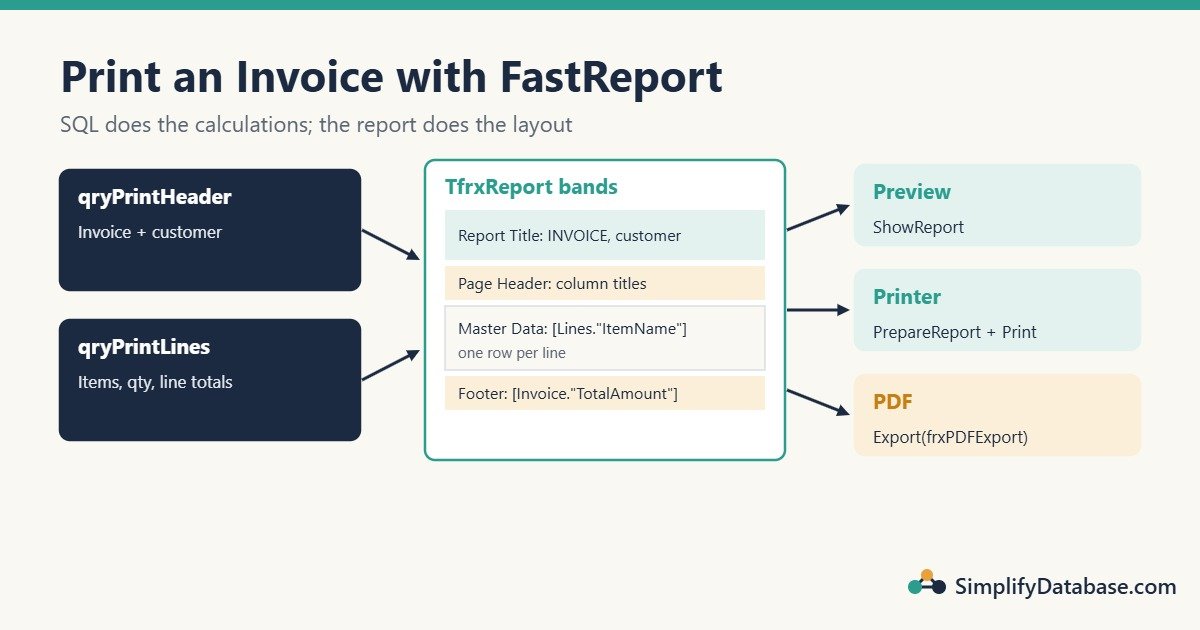
Table of Contents
What You Need
- Delphi Professional, Enterprise or Architect. FastReport Embarcadero edition is included; in recent versions you install it from Tools → GetIt Package Manager (search “FastReport”). It isn’t included in the Community Edition.
- The
Customers,Items,InvoicesandInvoiceLinestables from parts 3 to 5.
The Embarcadero edition is a reduced version of FastReport. It’s enough for invoices and statements, but it has limits worth knowing:
| Feature | Embarcadero edition |
|---|---|
| Report designer | In the Delphi IDE only (users can’t edit reports at runtime) |
| Preview and print | Yes |
| Export | PDF, RTF, HTML, TXT, CSV and images (no Excel XLSX) |
| Report scripts (code inside the report) | No |
Because there are no report scripts, the rule for this article is simple: do the calculations in SQL, and use the report only for layout. That’s good practice anyway.
Step 1: Two Queries With Everything the Invoice Needs
Drop two TFDQuery components on the invoice form (or a data module).
qryPrintHeader, one row:
SELECT i.InvoiceNo, i.InvoiceDate, i.Notes, i.TotalAmount,
       c.CustomerCode, c.CustomerName, c.City, c.Phone
FROM dbo.Invoices AS i
JOIN dbo.Customers AS c ON c.CustomerID = i.CustomerID
WHERE i.InvoiceID = :InvoiceIDqryPrintLines, one row per line, with the line total already calculated:
SELECT ROW_NUMBER() OVER (ORDER BY l.LineID) AS LineNum,
       it.ItemCode, it.ItemName, l.Qty, l.UnitPrice,
       CAST(l.Qty * l.UnitPrice AS DECIMAL(14,3)) AS LineTotal
FROM dbo.InvoiceLines AS l
JOIN dbo.Items AS it ON it.ItemID = l.ItemID
WHERE l.InvoiceID = :InvoiceID
ORDER BY l.LineID
ROW_NUMBER() gives the 1, 2, 3 line numbers printed on the invoice. (See SQL Window Functions Explained Simply.)
Step 2: Connect the Data to FastReport
From the FastReport tab of the Tool Palette, drop:
- Two
TfrxDBDatasetcomponents: –frxdsHeader:DataSet = qryPrintHeader,UserName = Invoice–frxdsLines:DataSet = qryPrintLines,UserName = Lines - One
TfrxReportnamedfrxInvoice. - One
TfrxPDFExportnamedfrxPDF.
UserName is the name you’ll see inside the report designer, so keep it short and clear. TfrxDBDataset works with any Delphi dataset, so the same report works with TADOQuery too.
Step 3: Design the Report
Open both queries at design time with a real InvoiceID (set the parameter value in the Object Inspector) so you can see field names in the designer. Then double-click frxInvoice to open the designer.
- Report → Data: tick
InvoiceandLines. - Add these bands (from the band button on the left toolbar):
| Band | Contents |
|---|---|
| Report Title | Company name, address, “INVOICE” in large text; invoice number and date; customer name, code, city, phone |
| Page Header | Column headings: No, Code, Item, Qty, Unit price, Total |
Master Data (dataset Lines) | One row per line: [Lines."LineNum"], [Lines."ItemCode"], [Lines."ItemName"], [Lines."Qty"], [Lines."UnitPrice"], [Lines."LineTotal"] |
| Footer | “Total:” and [Invoice."TotalAmount"], plus [Invoice."Notes"] |
| Page Footer | “Page [Page#]” |
- Drag fields from the Data tree on the right straight onto the bands. FastReport creates a text object with the field expression for you.
- For money columns, select the text object → Display format → Number, format string
%2.3n(3 decimals with thousands separators), and set HAlign = Right. - Give the Page Header and Master Data rows thin borders so the lines look like a table.
Press Preview in the designer to check the layout, then close the designer. The report design is saved inside the form.
Step 4: Print From Your Code
procedure TfrmInvoice.OpenPrintData(const InvoiceID: Integer);
begin
  qryPrintHeader.Close;
  qryPrintHeader.ParamByName('InvoiceID').AsInteger := InvoiceID;
  qryPrintHeader.Open;

  qryPrintLines.Close;
  qryPrintLines.ParamByName('InvoiceID').AsInteger := InvoiceID;
  qryPrintLines.Open;
end;

procedure TfrmInvoice.btnPreviewClick(Sender: TObject);
begin
  OpenPrintData(qryInvoices.FieldByName('InvoiceID').AsInteger);
  frxInvoice.ShowReport;   // prepares the report and opens the preview window
end;
The preview window already has buttons for print, zoom, page navigation and export.
To print directly to the default printer, without preview or a print dialog:
procedure TfrmInvoice.btnPrintClick(Sender: TObject);
begin
  OpenPrintData(qryInvoices.FieldByName('InvoiceID').AsInteger);
  frxInvoice.PrintOptions.ShowDialog := False;
  frxInvoice.PrepareReport;
  frxInvoice.Print;
end;
Step 5: Save the Invoice as PDF
PDF is how most invoices are sent today. Export without showing any dialog:
procedure TfrmInvoice.SaveInvoicePdf(const InvoiceID: Integer; const FileName: string);
begin
  OpenPrintData(InvoiceID);
  frxInvoice.PrepareReport;
  frxPDF.FileName := FileName;
  frxPDF.ShowDialog := False;
  frxInvoice.Export(frxPDF);
end;
SaveInvoicePdf(qryInvoices.FieldByName('InvoiceID').AsInteger,
'C:\Invoices\' + qryInvoices.FieldByName('InvoiceNo').AsString + '.pdf');Step 6: Company Name Without Hard-Coding It
Don’t type the company name into every report. Put it in a report variable: in the designer, Report → Variables, add CompanyName, and show it with [CompanyName] in the Report Title. Fill it from code (from a settings table, for example):
frxInvoice.Variables['CompanyName'] := QuotedStr(CompanyNameFromSettings);String values must be quoted with QuotedStr, because FastReport treats a variable’s value as an expression.
Tips for ERP Reports
- One query per section. Header in one query, lines in another. Let SQL Server do joins, totals and numbering.
- Use the stored total. The invoice total printed must match the one in the database (
TotalAmount), not a separate calculation. - Test with long data. A 40-line invoice must flow onto page 2 with the column headings repeated (that’s what the Page Header band is for).
- Reprints. Mark copies with a “COPY” label when an invoice is printed again; auditors like this.
- Statements and ledgers follow the same pattern. The customer statement procedure from part 7 can feed a Master Data band directly.
Common Mistakes
- Forgetting to open the datasets before
ShowReport. The report prints empty. - Leaving design-time test data open. Close the queries before saving the project, or the app may try to open them at startup.
- Calculating totals in the report. In the Embarcadero edition you can’t use report scripts, and totals belong in SQL anyway.
- Hard-coded paths. Build PDF paths from a setting, and create the folder first with
ForceDirectories. - Wrong
UserNamein expressions.[Lines."Qty"]uses theUserNameof theTfrxDBDataset, not the query’s component name.
Practice Exercises
- Show “Page 1 of 2” in the page footer.
- Add “Amount in words” under the total (for example “One hundred twenty dinars and 500 fils”).
- Save every invoice PDF into a folder per year and month, like
C:\Invoices\2026\12\.
Answers
1. Use Page [Page#] of [TotalPages#] in the Page Footer, and set the report’s EngineOptions.DoublePass := True (in the Object Inspector or the designer’s report options). FastReport needs two passes to know the total page count.
2. Calculate the text in Delphi with a function (a classic exercise in itself), then pass it in a report variable:
frxInvoice.Variables['AmountInWords'] :=
  QuotedStr(AmountToWords(qryPrintHeader.FieldByName('TotalAmount').AsCurrency));
3.
var
  Folder: string;
begin
  Folder := IncludeTrailingPathDelimiter('C:\Invoices') +
    FormatDateTime('yyyy\mm', qryInvoices.FieldByName('InvoiceDate').AsDateTime);
  ForceDirectories(Folder);
  SaveInvoicePdf(qryInvoices.FieldByName('InvoiceID').AsInteger,
    IncludeTrailingPathDelimiter(Folder) + qryInvoices.FieldByName('InvoiceNo').AsString + '.pdf');
end;
Summary
- FastReport (Embarcadero edition) comes with Delphi Professional and higher, installed through GetIt.
- Feed the report from SQL: a header query and a lines query, connected with
TfrxDBDataset. - Design with bands: Report Title, Page Header, Master Data, Footer, Page Footer.
ShowReportpreviews,PrepareReport+Printprints,PrepareReport+Exportsaves a PDF.- Keep calculations in SQL and use report variables for company details.
Next in the series: exporting data from Delphi to Excel, CSV and PDF.
Delphi for ERP series
All parts in order. New parts appear here as they go live.
-
Why Delphi Is Still a Great Choice for ERP and Business Apps in 2026
-
Delphi vs C# vs Web Apps for Business Software: Which Should You Use?
-
Build a Customer Screen in Delphi in 30 Minutes (SQL Server Step by Step)
-
Lookup Combo Boxes in Delphi: Choose a Customer or Item From a List
-
Master-Detail Forms in Delphi: Invoice Header and Invoice Lines (FireDAC)
-
Delphi Transactions with FireDAC: Save a Balanced Journal Entry (All or Nothing)
-
Call SQL Server Stored Procedures from Delphi with FireDAC (TFDStoredProc)
-
Print Invoices and Reports in Delphi with FastReport (Step by Step)
New to Delphi? Start with What Is Delphi? Build Your First App.
Related articles
- Call SQL Server Stored Procedures from Delphi: part 7 of this series.
- Master-Detail Forms in Delphi: Invoice Header and Lines: the invoice this report prints.
- SQL Window Functions Explained Simply: ROW_NUMBER for line numbers.
- SQL JOINs Explained Simply: the joins behind both report queries.