
Sooner or later every ERP user asks the same question: “Can I have this in Excel?” Accountants want to check balances in a spreadsheet, managers want to make a chart, and auditors want a file they can filter.
This article gives you three reusable exports for any Delphi dataset, the grid the user is looking at:
- CSV: works everywhere, no Excel needed, and safe for Arabic text.
- Excel (XLSX): opens Excel with the data already in a sheet, fast even for thousands of rows.
- PDF: a formatted, read-only document.
This is part 9 of the Delphi for ERP series. The PDF part builds on part 8: printing with FastReport.
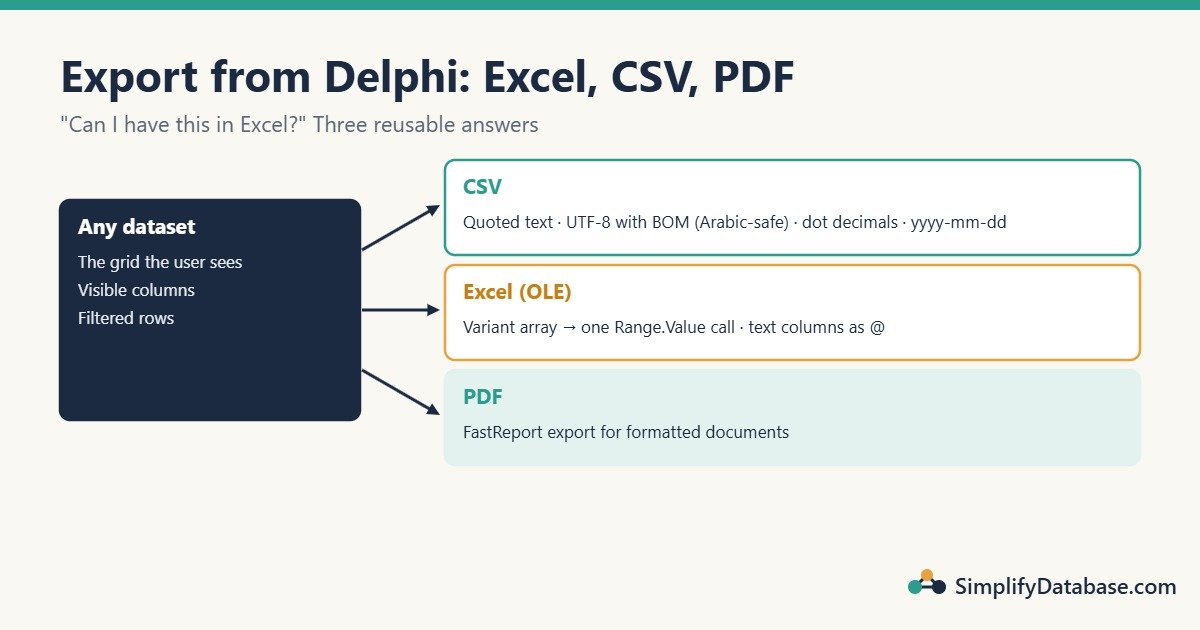
Table of Contents
Which Export When?
| Format | Best for | Needs | Watch out |
|---|---|---|---|
| CSV | Data for other systems; quick lists | Nothing | Encoding and separators (see below) |
| Excel via OLE | Users who want to work in Excel right away | Excel installed on the PC | Doesn’t work on a server without Excel |
| Documents to send or archive | FastReport (Professional+) | A report layout per document type |
Export 1: CSV That Opens Correctly in Excel
A good CSV export has to handle a few things that simple examples skip:
- Quotes and commas inside text (
Gulf "Office", Supply) must be quoted correctly. - Arabic and other non-English text must be saved as UTF-8 with a BOM (a small marker at the start of the file). Without it, Excel shows Arabic as random symbols.
- Decimals must always use a dot, whatever the PC’s regional settings.
- Dates should be in
yyyy-mm-ddformat, which Excel and other systems read without confusion. - Export what the user sees: visible columns, their titles, and only the rows that match the current filter.
Put this in a shared unit (for example uExport.pas) so every screen can use it:
unit uExport;

interface

uses
  System.SysUtils, System.Classes, Data.DB;

procedure ExportDataSetToCsv(DataSet: TDataSet; const FileName: string; Sep: Char = ',');

implementation

function CsvQuote(const S: string; Sep: Char): string;
begin
  if (Pos(Sep, S) > 0) or (Pos('"', S) > 0) or (Pos(#10, S) > 0) or (Pos(#13, S) > 0) then
    Result := '"' + StringReplace(S, '"', '""', [rfReplaceAll]) + '"'
  else
    Result := S;
end;

function CsvValue(F: TField; Sep: Char): string;
var
  FS: TFormatSettings;
begin
  if F.IsNull then
    Exit('');
  FS := FormatSettings;
  FS.DecimalSeparator := '.';   // always a dot, whatever the PC's regional settings
  case F.DataType of
    ftSmallint, ftInteger, ftWord, ftLargeint, ftAutoInc:
      Result := F.AsString;
    ftFloat:
      Result := FloatToStr(F.AsFloat, FS);
    ftCurrency, ftBCD, ftFMTBcd:
      Result := CurrToStr(F.AsCurrency, FS);
    ftDate:
      Result := FormatDateTime('yyyy-mm-dd', F.AsDateTime);
    ftDateTime, ftTimeStamp:
      Result := FormatDateTime('yyyy-mm-dd hh:nn:ss', F.AsDateTime);
    ftBoolean:
      if F.AsBoolean then Result := '1' else Result := '0';
  else
    Result := CsvQuote(F.AsString, Sep);
  end;
end;

procedure ExportDataSetToCsv(DataSet: TDataSet; const FileName: string; Sep: Char = ',');
var
  Lines: TStringList;
  Line: string;
  I: Integer;
  First: Boolean;
  Bookmark: TBookmark;
begin
  Lines := TStringList.Create;
  DataSet.DisableControls;          // the grid doesn't flicker while we loop
  Bookmark := DataSet.GetBookmark;  // remember the user's current row
  try
    // Header row: the column titles the user sees
    Line := '';
    First := True;
    for I := 0 to DataSet.FieldCount - 1 do
      if DataSet.Fields[I].Visible then
      begin
        if not First then Line := Line + Sep;
        Line := Line + CsvQuote(DataSet.Fields[I].DisplayLabel, Sep);
        First := False;
      end;
    Lines.Add(Line);

    // Data rows (a filtered dataset only returns the matching rows)
    DataSet.First;
    while not DataSet.Eof do
    begin
      Line := '';
      First := True;
      for I := 0 to DataSet.FieldCount - 1 do
        if DataSet.Fields[I].Visible then
        begin
          if not First then Line := Line + Sep;
          Line := Line + CsvValue(DataSet.Fields[I], Sep);
          First := False;
        end;
      Lines.Add(Line);
      DataSet.Next;
    end;

    Lines.WriteBOM := True;
    Lines.SaveToFile(FileName, TEncoding.UTF8);   // UTF-8 with BOM: Arabic shows correctly in Excel
  finally
    DataSet.GotoBookmark(Bookmark);
    DataSet.FreeBookmark(Bookmark);
    DataSet.EnableControls;
    Lines.Free;
  end;
end;

end.
We tested the CSV logic with Free Pascal on a dataset containing a hidden ID column, a name with quotes and a comma, an empty date and an Arabic name. The output was:
Customer name,CreditLimit,Since
Al Noor Trading,5000,2026-01-05
"Gulf ""Office"", Supply",2500.5,
مؤسسة النور,0.125,2026-12-01
The hidden column was skipped, the tricky name was quoted, and the user’s current row was restored afterwards.
Using it from a screen takes three lines with a TSaveDialog:
procedure TfrmCustomers.btnExportCsvClick(Sender: TObject);
begin
  dlgSave.Filter := 'CSV files (*.csv)|*.csv';
  dlgSave.FileName := 'Customers.csv';
  if dlgSave.Execute then
    ExportDataSetToCsv(qryCustomers, dlgSave.FileName);
end;
Comma or semicolon? On PCs where the regional decimal separator is a comma (much of Europe), Excel expects ; between columns. Pass Sep := ';' for those users.
Export 2: Straight Into Excel (Fast)
If Excel is installed, Delphi can open it and fill a sheet through OLE automation. The classic beginner version writes one cell at a time, which is painfully slow: 5,000 rows × 8 columns means 40,000 calls into Excel. The fast way is to build all values in a variant array in memory and send them to Excel in one call.
uses
  System.Win.ComObj, System.Variants;

procedure ExportDataSetToExcel(DataSet: TDataSet);
var
  Excel, Sheet, Data: Variant;
  Cols: array of TField;
  RowCount, R, C: Integer;
  Bookmark: TBookmark;
begin
  // Which columns: the visible ones, in grid order
  for C := 0 to DataSet.FieldCount - 1 do
    if DataSet.Fields[C].Visible then
    begin
      SetLength(Cols, Length(Cols) + 1);
      Cols[High(Cols)] := DataSet.Fields[C];
    end;

  DataSet.DisableControls;
  Bookmark := DataSet.GetBookmark;
  try
    // Count the rows (respects filters)
    RowCount := 0;
    DataSet.First;
    while not DataSet.Eof do
    begin
      Inc(RowCount);
      DataSet.Next;
    end;

    // Row 0 = titles, rows 1..RowCount = data
    Data := VarArrayCreate([0, RowCount, 0, High(Cols)], varVariant);
    for C := 0 to High(Cols) do
      Data[0, C] := Cols[C].DisplayLabel;

    R := 1;
    DataSet.First;
    while not DataSet.Eof do
    begin
      for C := 0 to High(Cols) do
        Data[R, C] := Cols[C].Value;   // numbers stay numbers, dates stay dates
      Inc(R);
      DataSet.Next;
    end;
  finally
    DataSet.GotoBookmark(Bookmark);
    DataSet.FreeBookmark(Bookmark);
    DataSet.EnableControls;
  end;

  Excel := CreateOleObject('Excel.Application');
  Excel.Workbooks.Add;
  Sheet := Excel.ActiveWorkbook.ActiveSheet;

  // Keep text columns as text, so codes like 00123 keep their leading zeros
  for C := 0 to High(Cols) do
    if Cols[C].DataType in [ftString, ftWideString, ftFixedChar, ftFixedWideChar] then
      Sheet.Columns[C + 1].NumberFormat := '@';

  // One call writes everything
  Sheet.Range[Sheet.Cells[1, 1], Sheet.Cells[RowCount + 1, Length(Cols)]].Value := Data;

  Sheet.Rows[1].Font.Bold := True;
  Sheet.Columns.AutoFit;
  Excel.Visible := True;   // hand the workbook to the user
end;
Because values go in as real numbers and dates (not text), the user can sum, sort and chart them right away.
Notes:
- This needs Excel on the user’s PC. On a PC or server without Excel,
CreateOleObjectfails; catch it and offer the CSV export instead. - The user saves the workbook from Excel (as XLSX), so you don’t deal with file formats at all.
- For very large exports (hundreds of thousands of rows), CSV is faster and lighter.
Export 3: PDF
PDF is for documents, not raw data: invoices, statements, a formatted customer list. In Delphi the usual way is FastReport, which you set up in part 8:
frxReport1.PrepareReport;
frxPDFExport1.FileName := FileName;
frxPDFExport1.ShowDialog := False;
frxReport1.Export(frxPDFExport1);
The same report can also be exported to CSV, HTML or RTF by using a different export component. (The FastReport Embarcadero edition doesn’t include an XLSX export, which is one more reason to keep the OLE and CSV exports above.)
Make Exports Easy to Find
A small touch that users notice: put Export to Excel and Export to CSV on a right-click menu of every grid. With a TPopupMenu shared by all grids, one handler can export whichever grid was clicked:
procedure TfrmMain.mnuExportExcelClick(Sender: TObject);
var
  Grid: TDBGrid;
begin
  Grid := (popGrid.PopupComponent as TDBGrid);
  if Assigned(Grid.DataSource) and Assigned(Grid.DataSource.DataSet) then
    ExportDataSetToExcel(Grid.DataSource.DataSet);
end;
Common Mistakes
- Writing to Excel cell by cell. It works, but it takes minutes instead of seconds. Use a variant array.
- CSV without a BOM. Arabic and accented letters turn into nonsense in Excel.
- Formatting numbers before exporting (
1,250.500as text). Excel then can’t calculate with them. Export raw values; let Excel format. - Losing leading zeros. Item codes like
00123become123unless the column is formatted as text. - Forgetting the user’s position. Without a bookmark, the grid jumps to the last row after an export.
- Exporting hidden columns such as internal IDs. Export what the user sees.
Practice Exercises
- Add a title row above the column headings in the Excel export (“Customer list, printed 22/12/2026”).
- Export only the rows the user has selected in a multi-select
TDBGrid. - Let the user choose between comma and semicolon in the CSV export, and remember the choice.
Answers
1. Start the data at row 3 instead of row 1 and write the title into cell A1:
Sheet.Cells[1, 1].Value := 'Customer list, printed ' + DateToStr(Date);
Sheet.Cells[1, 1].Font.Bold := True;
Sheet.Range[Sheet.Cells[3, 1], Sheet.Cells[RowCount + 3, Length(Cols)]].Value := Data;
Sheet.Rows[3].Font.Bold := True;
2. With dgMultiSelect in the grid’s Options, the selected rows are bookmarks in Grid.SelectedRows. Loop over them instead of the whole dataset:
for I := 0 to Grid.SelectedRows.Count - 1 do
begin
  DataSet.GotoBookmark(Grid.SelectedRows[I]);
  // ... add this row to the CSV lines or the variant array ...
end;
3. Add a TRadioGroup (Comma / Semicolon) to an options form, pass Sep accordingly, and store the choice in a settings table or an INI file (TIniFile.WriteString('Export', 'Separator', Sep)), then read it back when the app starts.
Summary
- CSV: quote correctly, save as UTF-8 with a BOM, use dots for decimals and
yyyy-mm-ddfor dates. - Excel: fill a variant array and send it in one
Range.Valuecall; set text columns to@. - PDF: use FastReport exports for formatted documents.
- Export visible columns and filtered rows, and put the user back on their row.
Next in the series: user login and permissions, so each user sees only the screens and buttons they’re allowed to use.
Delphi for ERP series
All parts in order. New parts appear here as they go live.
-
Why Delphi Is Still a Great Choice for ERP and Business Apps in 2026
-
Delphi vs C# vs Web Apps for Business Software: Which Should You Use?
-
Build a Customer Screen in Delphi in 30 Minutes (SQL Server Step by Step)
-
Lookup Combo Boxes in Delphi: Choose a Customer or Item From a List
-
Master-Detail Forms in Delphi: Invoice Header and Invoice Lines (FireDAC)
-
Delphi Transactions with FireDAC: Save a Balanced Journal Entry (All or Nothing)
-
Call SQL Server Stored Procedures from Delphi with FireDAC (TFDStoredProc)
-
Print Invoices and Reports in Delphi with FastReport (Step by Step)
-
Export Data from Delphi to Excel, CSV and PDF (With Ready-to-Use Code)
-
User Login and Permissions in a Delphi ERP App (Roles, Hashed Passwords, SQL Server)
New to Delphi? Start with What Is Delphi? Build Your First App.
Related articles
- Print Invoices and Reports in Delphi with FastReport: part 8 of this series.
- How to Import a CSV File into SQL Server from Delphi: the opposite direction.
- SQL vs Excel: What’s the Difference?: when data belongs in a database and when in a spreadsheet.
- SQL Date Functions Explained Simply: date formats that travel well.