
The query ran in two seconds for months. Then, one morning after the nightly import, the same report takes four minutes. Nobody changed the code. Nobody added an index or dropped one. The data just grew a little.
When that happens, one of the first things to check is statistics. SQL Server uses them to guess how many rows each step of a query will return, and it builds the whole execution plan around those guesses. When the statistics are out of date, the guesses are wrong, and a plan that was perfect for yesterday’s data can be terrible for today’s.
This guide explains what statistics are, how to see them, how to tell when old statistics are the problem, and how to keep them fresh so it doesn’t happen again.
What statistics are
For every index, and for many columns you filter on, SQL Server keeps a small summary of the data called a statistics object. It contains three things:
- A header: when the statistics were last updated, how many rows the table had, and how many rows were read (sampled) to build them.
- A density vector: roughly, how many different values a column has. A
Statuscolumn with 4 values has high density; anOrderIDcolumn with millions of unique values has very low density. - A histogram: up to 200 “steps” that describe how the values are spread. For example: “about 9,000 orders on 2026-10-01, about 8,500 on 2026-10-02…”.
When you run a query like this:
SELECT OrderID, CustomerID, Amount
FROM dbo.Orders
WHERE OrderDate >= '2026-10-31';
the optimizer looks at the histogram for OrderDate and estimates how many rows match. That number, the estimated rows, decides almost everything else: whether to use an index seek or a scan, whether to use a nested loops join or a hash join, and how much memory to ask for.
Statistics don’t need to be perfect. They need to be close enough. The trouble starts when they’re far off.
How old statistics create a bad plan
Here’s a simplified, made-up example, but it’s a pattern that shows up in real systems all the time.
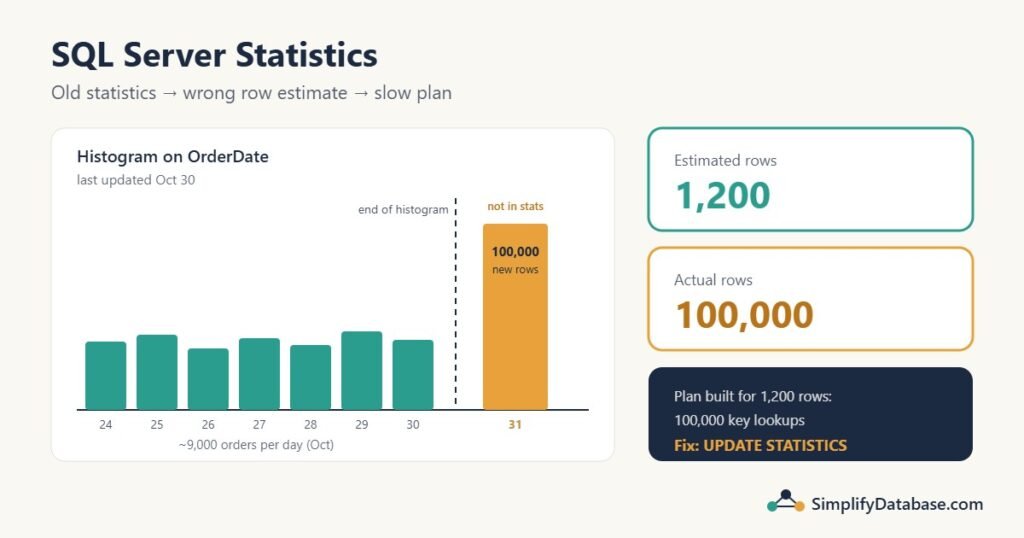
dbo.Ordershas 20 million rows, with an index onOrderDate.- The statistics on that index were last updated on Oct 30.
- On the night of Oct 31, an import job adds 100,000 new orders, all dated Oct 31.
- The next morning, a report asks for orders from Oct 31 onward.
The histogram was built before those rows existed. As far as the statistics know, there are no orders after Oct 30, so the optimizer has to guess. The old cardinality estimator (before SQL Server 2014) guessed just 1 row. The newer one makes an average-based guess, which is better, but can still be far from the truth. Let’s say it estimates 1,200 rows.
For 1,200 rows, a perfectly reasonable plan is: seek on the OrderDate index, then do a key lookup for each row to fetch CustomerID and Amount. For 100,000 rows, that same plan does 100,000 key lookups, each one a separate trip into the table. A scan, or a different join, would be many times faster.
The plan wasn’t wrong for the numbers it was given. The numbers were wrong.
| Estimated | Actual | |
|---|---|---|
| Rows for Oct 31 | 1,200 | 100,000 |
| Plan chosen | Index seek + key lookup | Same plan, run 100,000 times |
| Memory grant (for a sort) | Small | Too small, so the sort spills to tempdb |
That last row is common too. SQL Server reserves memory for sorts and hash joins based on the estimate. If the estimate is far too low, the operation runs out of memory and spills to tempdb, which is slow.
Step 1: Compare estimated and actual rows
The quickest way to spot a statistics problem is the actual execution plan. In SSMS, press Ctrl+M (Include Actual Execution Plan) and run the query. Then hover over the operators, starting from the right, and compare:
- Estimated Number of Rows (what SQL Server expected)
- Actual Number of Rows (what really happened)
A small difference is normal. A difference of 10 times or more, especially on the first operators that read from a table, is a strong sign that the statistics don’t match the data. Newer versions of SSMS show this right on the plan as “actual of estimated” under each operator, for example 100000 of 1200 (8333%).
If you’ve never read a plan before, start with How to Read a SQL Server Execution Plan.
Step 2: See when the statistics were last updated
This query lists every statistics object on a table, when it was last updated, how many rows it was built from, and how many rows have changed since:
SELECT s.name                  AS stats_name,
       s.auto_created,
       sp.last_updated,
       sp.rows,
       sp.rows_sampled,
       sp.modification_counter  -- rows changed since the last update
FROM sys.stats AS s
CROSS APPLY sys.dm_db_stats_properties(s.object_id, s.stats_id) AS sp
WHERE s.object_id = OBJECT_ID('dbo.Orders')
ORDER BY sp.modification_counter DESC;
What to look for:
modification_counteris large compared torows: many rows have changed since the statistics were built.last_updatedis before your last big data load: the import, month-end close or mass update isn’t in the statistics yet.rows_sampledis much smaller thanrows: the statistics were built from a sample. That’s normal for big tables, but on skewed data a small sample can miss important values.- Names starting with
_WA_Sys_: these were created automatically on a column (auto_created = 1), because a query filtered on a column with no index.
Step 3: Look inside a statistics object
To see the histogram itself, use DBCC SHOW_STATISTICS with the table and the statistics name from the query above:
DBCC SHOW_STATISTICS ('dbo.Orders', 'IX_Orders_OrderDate');It returns three result sets: the header, the density vector and the histogram. In the histogram, look at the last row. Its RANGE_HI_KEY is the highest value SQL Server knows about. In our example it would be 2026-10-30. Anything after that is invisible to the optimizer until the statistics are updated.
This is called the ascending key problem, and it hits columns that always grow: dates, identity columns, invoice numbers. New rows always land after the end of the histogram, which is exactly where most queries look (“today’s orders”, “this month’s invoices”).
Step 4: Update the statistics and test again
If the statistics look stale, update them and run the query again:
-- All statistics on one table (SQL Server picks the sample size)
UPDATE STATISTICS dbo.Orders;

-- One statistics object, reading every row
UPDATE STATISTICS dbo.Orders IX_Orders_OrderDate WITH FULLSCAN;
If the query is suddenly fast and the estimated and actual rows are close, you’ve found the cause.
One honest warning: updating statistics also makes SQL Server recompile the plans that use them. So if the query gets faster, it might be because of the fresh statistics, or just because it got a new plan. If the slowness comes back a few hours later with no big data change, the real problem may be parameter sniffing rather than statistics. Comparing estimated and actual rows (Step 1) helps you tell the two apart.
FULLSCAN reads the whole table, so it can take a while on a big one. Run it outside busy hours if you can. On a 20-million-row table, a sampled update is usually fine for most columns; use FULLSCAN for the few columns where the sample keeps getting it wrong.
How SQL Server updates statistics automatically
Most databases have two settings on by default:
- AUTO_CREATE_STATISTICS: creates column statistics when a query needs them.
- AUTO_UPDATE_STATISTICS: updates statistics when enough rows have changed.
You can check both with:
SELECT name,
       is_auto_create_stats_on,
       is_auto_update_stats_on,
       is_auto_update_stats_async_on
FROM sys.databases;
Leave them on. The catch is when “enough rows have changed”:
| SQL Server version | Statistics are considered out of date after… | For a 20M-row table |
|---|---|---|
| Before 2016 (or compatibility level below 130) | 500 rows + 20% of the table | about 4,000,500 changes |
| 2016 and later (compatibility level 130+) | the smaller of 500 + 20% or the square root of (1,000 × rows) | about 141,421 changes |
On older versions, a 20-million-row table needs 4 million changes before an automatic update. Our 100,000-row import is nowhere near that. Even on SQL Server 2016 and later, 100,000 changes is still below the 141,421 threshold, so the statistics stay old.
Also, the automatic update doesn’t happen the moment the threshold is crossed. It happens the next time a query needs those statistics. By default that query waits while the statistics are rebuilt. If you turn on AUTO_UPDATE_STATISTICS_ASYNC, the query runs with the old statistics and the update happens in the background, so it’s the next query that benefits. Async is useful when you can’t afford a sudden pause, but most systems are fine with the default.
Keeping statistics fresh: the long-term fix
Automatic updates are a safety net, not a plan. For a busy database, do these:
- Update statistics after big data loads. Add
UPDATE STATISTICSfor the affected tables as the last step of your import, archive or month-end job. This is the single most effective fix for the “slow after the import” pattern. - Run a regular maintenance job. A nightly or weekly job that updates statistics with modified rows. The built-in
sp_updatestatsdoes this for the whole database. Many DBAs use Ola Hallengren’s free maintenance scripts instead, with@UpdateStatistics = 'ALL'and@OnlyModifiedStatistics = 'Y'. - Know what index maintenance does. Rebuilding an index (
ALTER INDEX ... REBUILD) also updates that index’s statistics with a full scan. Reorganizing (REORGANIZE) does not update statistics. And rebuilding indexes never touches column statistics (the_WA_Sys_ones), so you still need a statistics job. - Use FULLSCAN where sampling fails. If one column keeps getting bad estimates because its data is very uneven, update just that statistics object
WITH FULLSCAN. On SQL Server 2016 SP1 CU4 and later you can addPERSIST_SAMPLE_PERCENT = ONso later automatic updates keep the same sample rate.
-- Last step of the nightly import job
UPDATE STATISTICS dbo.Orders WITH FULLSCAN;
UPDATE STATISTICS dbo.OrderLines;

-- Whole database, only statistics with changes (default sample)
EXEC sp_updatestats;
Common mistakes
- Turning off auto update to “save time”. Without it, statistics only change when someone remembers. Leave it on and add a scheduled job on top.
- Reorganizing indexes and assuming statistics are now fresh. They aren’t. Only a rebuild updates index statistics.
- Updating statistics with a tiny sample on purpose.
WITH SAMPLE 1 PERCENTon a skewed table can produce worse statistics than the ones you replaced. - Treating every slow query as a statistics problem. If estimated and actual rows are close, statistics are fine. Look at indexes, blocking or the query itself instead.
- Forgetting table variables. Before SQL Server 2019, a table variable has no statistics at all, and SQL Server assumes it holds 1 row. If you load thousands of rows into one and then join to it, expect bad plans. A temp table (
#Orders) has statistics and usually behaves better.
Quick checklist
- In the actual plan, are estimated and actual rows 10x or more apart?
- Does
sys.dm_db_stats_propertiesshow a bigmodification_counteror an oldlast_updated? - Does the histogram end before the values your query asks for?
- Does
UPDATE STATISTICS(then a re-run) fix it, and stay fixed? - If yes, add a statistics update after big loads and a regular maintenance job.
Practice exercises
Exercise 1. A table has 5 million rows. On SQL Server 2019 (compatibility level 150), roughly how many rows must change before its statistics are considered out of date? And on compatibility level 120?
Exercise 2. You rebuilt every index on dbo.Invoices last night, but a query filtering on dbo.Invoices.Status (no index on that column) still gets bad estimates. Why?
Exercise 3. Write a query that lists all statistics on dbo.Invoices where more than 10% of the rows have changed since the last update.
Answers
Answer 1. Compatibility level 150: the square root of (1,000 × 5,000,000) = the square root of 5,000,000,000, which is about 70,711 rows. That’s smaller than 500 + 20% (1,000,500), so the lower number wins. Compatibility level 120 uses the old rule: 500 + 20% of 5,000,000 = 1,000,500 rows.
Answer 2. An index rebuild only updates the statistics of that index. The statistics on Status are column statistics (auto-created, named _WA_Sys_...), and a rebuild doesn’t touch them. Update them with UPDATE STATISTICS dbo.Invoices or a statistics maintenance job.
Answer 3.
SELECT s.name AS stats_name,
       sp.last_updated,
       sp.rows,
       sp.modification_counter
FROM sys.stats AS s
CROSS APPLY sys.dm_db_stats_properties(s.object_id, s.stats_id) AS sp
WHERE s.object_id = OBJECT_ID('dbo.Invoices')
  AND sp.modification_counter > sp.rows * 0.10
ORDER BY sp.modification_counter DESC;
Summary
- Statistics are summaries of your data that SQL Server uses to estimate row counts, and every plan decision depends on those estimates.
- When estimated and actual rows are 10 times or more apart, check the statistics first.
sys.dm_db_stats_propertiesshows when statistics were last updated and how many rows changed since.DBCC SHOW_STATISTICSshows the histogram.- Columns that always grow, like dates and IDs, suffer most, because new rows land after the end of the histogram.
- Keep auto create and auto update on, update statistics after big loads, and run a regular statistics job. Remember that reorganizing indexes doesn’t update statistics.
Part of a series: this article is one step in my SQL Server Performance Troubleshooting: A Practical Step-by-Step Guide, which walks through the whole process of finding and fixing a slow query.
Related articles
- SQL Server Parameter Sniffing: the other common reason a query suddenly gets a bad plan.
- Index Seek vs Index Scan: why SQL Server sometimes ignores your index.
- Missing Indexes in SQL Server: when the plan is bad because the right index doesn’t exist.
- How to Fix Query Timeout and Performance Issues in Delphi Applications: when stale statistics show up as timeouts in a desktop app.