
“Can you load this file into the system?” Every business developer hears it. Bank statements, price lists from suppliers, employee lists from HR: they usually arrive as a CSV file, and your Delphi app needs to get them into SQL Server, correctly and quickly.
This article walks through a complete import: reading the file, splitting lines into fields, loading into a staging table, doing it fast with FireDAC Array DML, and reporting the rows that failed. It’s the last part of the Delphi + SQL Server track in the Learn Delphi series.
You’ll need a connection (Connect Delphi to SQL Server with FireDAC) and parameterised queries.
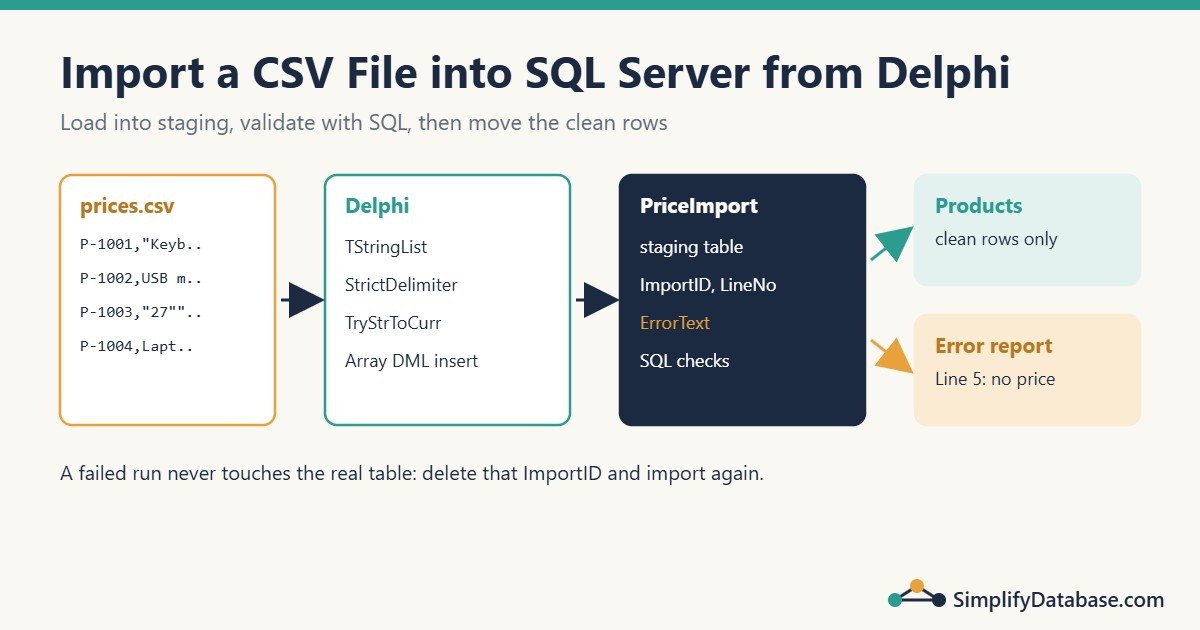
Table of Contents
The Example File
A supplier sends a price list, prices.csv:
ProductCode,ProductName,Price,ValidFrom
P-1001,"Keyboard, wireless",12.500,2026-11-01
P-1002,USB mouse,4.750,2026-11-01
P-1003,"27"" monitor",89.000,2026-11-01
P-1004,Laptop stand,,2026-11-01
Even this small file has the usual traps: a comma inside a quoted name, a quote inside a name (27" written as ""), and an empty price.
The Plan: Import Into a Staging Table First
Don’t load straight into your real Products table. Load into a staging table first, then check and move the data with SQL:
CREATE TABLE dbo.PriceImport (
    ImportID     INT           NOT NULL,   -- one number per import run
    LineNo       INT           NOT NULL,
    ProductCode  NVARCHAR(20)  NULL,
    ProductName  NVARCHAR(200) NULL,
    Price        DECIMAL(12,3) NULL,
    ValidFrom    DATE          NULL,
    ErrorText    NVARCHAR(400) NULL,
    CONSTRAINT PK_PriceImport PRIMARY KEY (ImportID, LineNo)
);
Why staging?
- A half-finished import doesn’t touch the real data. If the app stops at row 600 of 1,000, you delete that
ImportIDand run it again. - Validation in SQL is easy: find unknown product codes, duplicates and missing prices with a few queries.
- You keep a record of what was imported and when.
Step 1: Read the File
TStringList.LoadFromFile reads all lines in one call. Pass the encoding, because CSV files from Excel are often UTF-8 with Arabic or accented names:
uses
  System.Classes, System.SysUtils;

Lines := TStringList.Create;
try
  Lines.LoadFromFile(FileName, TEncoding.UTF8);
  // ... process Lines
finally
  Lines.Free;
end;
For files of a few hundred thousand lines this is fine. For very large files (hundreds of MB), read line by line with TStreamReader so the whole file isn’t in memory at once.
Step 2: Split a Line Into Fields
A second TStringList can split one line, and it understands quotes:
function SplitCsvLine(const Line: string; Fields: TStringList): Boolean;
begin
  Fields.Clear;
  Fields.Delimiter := ',';
  Fields.QuoteChar := '"';
  Fields.StrictDelimiter := True;   // only commas split, not spaces
  Fields.DelimitedText := Line;
  Result := Fields.Count > 0;
end;
StrictDelimiter := True is essential. Without it, spaces also split fields, so USB mouse becomes two fields.
For the line P-1003,"27"" monitor",89.000,2026-11-01 this gives four fields: P-1003, 27" monitor, 89.000 and 2026-11-01.
Limitation: this approach doesn’t handle line breaks inside quoted fields. If your files can contain those, use a real CSV reader, such as FireDAC’s
TFDBatchMoveTextReader(shown at the end).
Step 3: Convert Values Safely
Never trust the file. Convert with Try... functions and a fixed format, not the PC’s regional settings:
var
  FS: TFormatSettings;

FS := TFormatSettings.Create;
FS.DecimalSeparator := '.';
FS.DateSeparator := '-';
FS.ShortDateFormat := 'yyyy-mm-dd';
function TryParsePrice(const S: string; out Price: Currency;
const FS: TFormatSettings): Boolean;
begin
Result := (Trim(S) <> '') and TryStrToCurr(Trim(S), Price, FS);
end;If you use the PC’s default settings, a file with 12.500 will be read as twelve thousand five hundred on a PC whose decimal separator is a comma. Fixed TFormatSettings avoid that.
Step 4: Insert Each Row (Simple Version)
The simple version prepares one INSERT and runs it once per line. Bad values are stored as NULL with an error text, so the import never stops halfway:
procedure TImporter.ImportPrices(const FileName: string; ImportID: Integer);
var
  Lines, Fields: TStringList;
  I: Integer;
  Price: Currency;
  ValidFrom: TDateTime;
  Err: string;
begin
  Lines := TStringList.Create;
  Fields := TStringList.Create;
  try
    Lines.LoadFromFile(FileName, TEncoding.UTF8);

    qryIns.SQL.Text :=
      'INSERT INTO dbo.PriceImport ' +
      '(ImportID, LineNo, ProductCode, ProductName, Price, ValidFrom, ErrorText) ' +
      'VALUES (:ImportID, :LineNo, :Code, :Name, :Price, :ValidFrom, :Err)';
    qryIns.ParamByName('Price').DataType := ftBCD;
    qryIns.ParamByName('ValidFrom').DataType := ftDate;
    qryIns.ParamByName('Err').DataType := ftWideString;
    qryIns.Prepare;

    for I := 1 to Lines.Count - 1 do          // line 0 is the header
    begin
      if Trim(Lines[I]) = '' then
        Continue;

      SplitCsvLine(Lines[I], Fields);
      Err := '';
      if Fields.Count <> 4 then
        Err := Format('Expected 4 fields, found %d', [Fields.Count]);

      qryIns.ParamByName('ImportID').AsInteger := ImportID;
      qryIns.ParamByName('LineNo').AsInteger := I + 1;   // line number as in a text editor

      if Err = '' then
      begin
        qryIns.ParamByName('Code').AsString := Trim(Fields[0]);
        qryIns.ParamByName('Name').AsString := Trim(Fields[1]);

        if TryParsePrice(Fields[2], Price, FS) then
          qryIns.ParamByName('Price').AsCurrency := Price
        else
        begin
          qryIns.ParamByName('Price').Clear;
          Err := 'Invalid or missing price';
        end;

        if TryStrToDate(Trim(Fields[3]), ValidFrom, FS) then
          qryIns.ParamByName('ValidFrom').AsDate := ValidFrom
        else
        begin
          qryIns.ParamByName('ValidFrom').Clear;
          Err := Err + IfThen(Err <> '', '; ') + 'Invalid date';
        end;
      end
      else
      begin
        qryIns.ParamByName('Code').Clear;
        qryIns.ParamByName('Name').Clear;
        qryIns.ParamByName('Price').Clear;
        qryIns.ParamByName('ValidFrom').Clear;
      end;

      if Err = '' then
        qryIns.ParamByName('Err').Clear
      else
        qryIns.ParamByName('Err').AsString := Err;

      qryIns.ExecSQL;
    end;
  finally
    Fields.Free;
    Lines.Free;
  end;
end;(IfThen for strings is in System.StrUtils.)
This is easy to read and debug, and fine for a few thousand rows. Each ExecSQL is one round trip to the server, though, so 100,000 rows means 100,000 round trips.
Step 5: The Fast Version with Array DML
FireDAC’s Array DML sends many rows in one call. You set Params.ArraySize, fill values by index, and call Execute once per batch:
const
  BatchSize = 1000;
var
  Row, LineIdx: Integer;
begin
  qryIns.SQL.Text :=
    'INSERT INTO dbo.PriceImport ' +
    '(ImportID, LineNo, ProductCode, ProductName, Price, ValidFrom, ErrorText) ' +
    'VALUES (:ImportID, :LineNo, :Code, :Name, :Price, :ValidFrom, :Err)';
  qryIns.Params.ArraySize := BatchSize;
  Row := 0;

  for LineIdx := 1 to Lines.Count - 1 do
  begin
    if Trim(Lines[LineIdx]) = '' then
      Continue;
    SplitCsvLine(Lines[LineIdx], Fields);

    qryIns.ParamByName('ImportID').AsIntegers[Row] := ImportID;
    qryIns.ParamByName('LineNo').AsIntegers[Row] := LineIdx + 1;
    qryIns.ParamByName('Code').AsStrings[Row] := Trim(Fields[0]);
    // ... the other fields, same checks as before, using AsCurrencys[Row],
    //     AsDates[Row] and Clear(Row) for NULLs

    Inc(Row);
    if Row = BatchSize then
    begin
      qryIns.Execute(Row, 0);   // send 1,000 rows at once
      Row := 0;
    end;
  end;

  if Row > 0 then
    qryIns.Execute(Row, 0);     // the last, partial batch
end;
The indexed properties are the plural forms: AsIntegers[i], AsStrings[i], AsCurrencys[i], AsDates[i], and Clear(i) sets one row’s value to NULL.
On a typical network, this turns minutes into seconds. Batches of 500 to 5,000 rows work well; very large batches use more memory without much extra speed.
Edition note: Array DML is part of FireDAC’s client/server support (Enterprise/Architect). With ADO, use the simple prepared-insert loop from Step 4, or the BULK INSERT option below.
Step 6: Validate and Move with SQL
Now the data is in SQL Server, where checks are easy. Mark rows with unknown products:
UPDATE i
SET ErrorText = N'Unknown product code'
FROM dbo.PriceImport AS i
WHERE i.ImportID = @ImportID
  AND i.ErrorText IS NULL
  AND NOT EXISTS (SELECT 1 FROM dbo.Products AS p WHERE p.ProductCode = i.ProductCode);
Find codes that appear twice in the same file:
UPDATE i
SET ErrorText = COALESCE(ErrorText + N'; ', N'') + N'Duplicate product code in file'
FROM dbo.PriceImport AS i
WHERE i.ImportID = @ImportID
  AND i.ProductCode IN (SELECT ProductCode FROM dbo.PriceImport
                        WHERE ImportID = @ImportID
                        GROUP BY ProductCode HAVING COUNT(*) > 1);
Then move only the clean rows into the real table, for example with a stored procedure that the app calls with the ImportID:
UPDATE p
SET p.Price = i.Price, p.PriceValidFrom = i.ValidFrom
FROM dbo.Products AS p
JOIN dbo.PriceImport AS i ON i.ProductCode = p.ProductCode
WHERE i.ImportID = @ImportID
  AND i.ErrorText IS NULL;
Keeping this logic in a stored procedure means you can change the rules without rebuilding the Delphi app. See SQL Stored Procedures Explained Simply.
Step 7: Show the User What Happened
After the import, load a summary and the failed rows into a grid:
qrySummary.Open(
  'SELECT COUNT(*) AS Total, ' +
  '  SUM(CASE WHEN ErrorText IS NULL THEN 1 ELSE 0 END) AS OkRows, ' +
  '  SUM(CASE WHEN ErrorText IS NOT NULL THEN 1 ELSE 0 END) AS BadRows ' +
  'FROM dbo.PriceImport WHERE ImportID = :ID', [ImportID]);

lblResult.Caption := Format('%d rows read, %d OK, %d with errors', [
  qrySummary.FieldByName('Total').AsInteger,
  qrySummary.FieldByName('OkRows').AsInteger,
  qrySummary.FieldByName('BadRows').AsInteger]);

qryErrors.Open(
  'SELECT LineNo, ProductCode, ErrorText FROM dbo.PriceImport ' +
  'WHERE ImportID = :ID AND ErrorText IS NOT NULL ORDER BY LineNo', [ImportID]);
Show qryErrors in a TDBGrid (see Show SQL Server Data in a Delphi DBGrid). The user sees “Line 5: Invalid or missing price”, fixes the file and imports again. That’s far better than “Import failed”.
Other Options
| Option | How | Good for | Watch out |
|---|---|---|---|
| Prepared INSERT loop | Step 4 | Small files, any edition (FireDAC or ADO) | Slow for large files |
| FireDAC Array DML | Step 5 | Large files, full control over each value | Needs FireDAC client/server |
TFDBatchMove | TFDBatchMoveTextReader → TFDBatchMoveSQLWriter | Quick imports with little code; handles quoted line breaks | Less control over per-row validation |
BULK INSERT | SQL Server reads the file itself | Very large files | The file path must be readable by the SQL Server service, not your PC; needs bulk admin permissions |
A BULK INSERT call from Delphi looks like this. Note that the file path is a server path or a share the SQL Server service account can read:
conShop.ExecSQL(
  'BULK INSERT dbo.PriceImportRaw FROM ''\\fileserver\imports\prices.csv'' ' +
  'WITH (FORMAT = ''CSV'', FIRSTROW = 2, CODEPAGE = ''65001'')');
FORMAT = 'CSV' (SQL Server 2017 and later) understands quoted fields. Since a file path can’t be a parameter here, only ever build it from a fixed folder plus a file name you’ve checked, never from free user input.
Common Mistakes
- Splitting with
StrictDelimiter = False. Spaces split fields. - Parsing numbers and dates with the PC’s regional settings. Use a fixed
TFormatSettings. - Stopping the whole import at the first bad row. Record the error and continue, then report.
- Loading straight into the live table. Use a staging table.
- Building the INSERT by joining values into SQL text. One
O'Brienbreaks it. Use parameters. - Forgetting the header row, so “ProductCode” gets imported as a product.
Practice Exercises
Exercise 1. Some suppliers send semicolon-separated files. Change SplitCsvLine so the delimiter is a parameter.
Exercise 2. Add a check that rejects rows where the price is negative.
Exercise 3. Write the SQL that deletes a failed import run so it can be imported again.
Answers
Exercise 1:
function SplitCsvLine(const Line: string; Fields: TStringList;
  Delimiter: Char = ','): Boolean;
begin
  Fields.Clear;
  Fields.Delimiter := Delimiter;
  Fields.QuoteChar := '"';
  Fields.StrictDelimiter := True;
  Fields.DelimitedText := Line;
  Result := Fields.Count > 0;
end;
Exercise 2:
function TryParsePrice(const S: string; out Price: Currency;
  const FS: TFormatSettings): Boolean;
begin
  Result := (Trim(S) <> '') and TryStrToCurr(Trim(S), Price, FS) and (Price >= 0);
end;
Exercise 3:
DELETE FROM dbo.PriceImport WHERE ImportID = @ImportID;Because nothing reached the real Products table yet, this is all it takes. That’s the point of the staging table.
Summary
- Load CSV files into a staging table, validate with SQL, then move the clean rows.
- Split lines with
TStringListandStrictDelimiter := True; convert values withTry...functions and fixedTFormatSettings. - Use a prepared, parameterised INSERT for small files and FireDAC Array DML for large ones.
- Record errors per line and show them to the user instead of stopping at the first bad row.
BULK INSERTis the fastest, but SQL Server must be able to read the file itself.
That completes the Delphi + SQL Server track. Find every part of the Learn Delphi series in the Delphi category.
Learn Delphi series
All parts in order. New parts appear here as they go live.
-
What Is Delphi? Install Delphi Community Edition and Build Your First App
-
Delphi Basics: Variables, Data Types, If, Case and Loops Explained Simply
-
How to Connect Delphi to SQL Server with FireDAC (Step by Step)
-
Parameterised Queries in Delphi (FireDAC and ADO) Explained Simply
-
Delphi Exception Handling: try..except, try..finally and raise Explained Simply
-
How to Show SQL Server Data in a Delphi DBGrid (FireDAC Step by Step)
Next step: the Delphi for ERP series builds a small business app with these skills.
Related articles
- Parameterised Queries in Delphi (FireDAC and ADO): the parameter basics used throughout this import.
- Show SQL Server Data in a Delphi DBGrid: display the error rows to the user.
- SQL INSERT, UPDATE and DELETE Explained Simply: the statements behind the import.
- SQL Constraints Explained Simply: let the database itself reject bad data.